This one is for sites on 20i, or with a reseller who runs on 20i, with StackCache switched on. That is the whole audience. On any other host the plugin does nothing at all, and the rest of this article will not apply to you.
Here is the gap it fills. StackCache is 20i’s server-level page cache and it is quick. When you publish or edit a post it clears that post’s own URL, and stops there. Every page that merely lists the post, the homepage, the blog page, the category and tag archives, the post type archive, the feed, keeps its stored copy until it expires on its own. So the post is live at its own address and invisible everywhere anyone would look for it.
You can fix that by hand every time by clearing StackCache from the 20i control panel after publishing. I publish too often for that, so I wrote a small add-on. By the end of this you will have it installed, know exactly which pages it clears, know what the two toolbar buttons do, and know what it will not do.
Before you start
You need an administrator account on the WordPress site and access to your 20i control panel, or your reseller’s, to confirm StackCache is on. The listing gives the requirements as WordPress 5.6 or later, PHP 7.4 or later, and 20i StackCache active.
There is nothing destructive here. The plugin clears cached copies of pages, and a cleared cache rebuilds itself the next time someone loads the page. The worst outcome from a purge is that the next visitor waits while a page is built. No content is touched, so this is not a backup situation.
If you are not certain the problem is caching at all, work through why a new post is not showing on the homepage first. Scheduling, post status and a query filter in the theme all produce the same symptom, and none of them is fixed by clearing anything.
Step 1: Confirm StackCache is actually active
Everything below depends on it. StackCache is switched on per site in the 20i control panel, under the caching options for the package. It is not a WordPress plugin and it will not appear on your Plugins screen.
If the site is with a reseller and you cannot get into the panel, ask them the direct question: is StackCache enabled for this site? A reseller that white-labels 20i has the same toggle with their own name on the interface.
Without StackCache running, installing this add-on achieves nothing. That is not a failure state, and the plugin says so rather than pretending, which I will come back to below.
Step 2: Install the add-on
Search for ABCode Improved Caching for 20i StackCache under Plugins, then Add New. To install by hand, download the zip from the wordpress.org listing, unzip into /wp-content/plugins/ and activate.
There is no configuration step. With StackCache active it starts working on activation. No settings to tune and no purge rules to write, which was the point: the behaviour it adds is the behaviour you would have picked anyway.
Step 3: Know what changed the moment you activated it
From now on, publishing or updating a post clears the pages that list it as well as the post itself. That means the homepage, the term archives it belongs to (category, tag and any custom taxonomy), the post type archive, the blog page, its parent pages and the main feed.
That list is the whole idea. StackCache clears one URL, this widens the purge to the listing hierarchy that URL sits inside, so the site stops being internally inconsistent after every edit.
Two details worth knowing. The purge runs as a short background task after the save, so saving a post stays as fast as it was and you are not sitting watching a spinner while URLs are cleared. And every URL is checked against your own site’s host before anything is purged, so nothing off-domain is ever touched.
It also respects StackCache’s own full-purge setting. If StackCache is already configured to clear everything on publish, the add-on does not queue a second round of the same work on top.
Step 4: The two toolbar controls
Sometimes you want to clear something on purpose rather than wait for an edit to do it. The plugin adds a StackCache menu to the admin bar with two controls.
Purge This Page appears on front-end views and clears the page you are looking at. That is the one you will use most: you are on a page, it is stale, you clear that page and reload. Purge Everything is available anywhere and clears the lot. Both are nonce-protected, so a purge cannot be triggered by a link somebody sends you.
Reach for Purge This Page first. A full purge means every page has to be built from scratch again for the next person who asks for it, which is real work for the server and a slow first load for whoever that visitor happens to be.
Step 5: Hand the purged pages to the cache warmer
Clearing a page leaves a hole. The next visitor to that URL waits while the page is built and stored again, and on a homepage that visitor is quite often someone who matters.
If ABCode Cache Warmer is installed alongside it, the add-on hands the URLs it has just purged straight over, and they are rebuilt immediately rather than on the next request. Publish a post, the homepage and archives clear, and they are warm again before anyone arrives. This is optional: the add-on works fine on its own, it just leaves the rebuilding to whoever visits first.
What it does on a site without StackCache
Nothing. Deliberately, and it tells you.
Activate it on a site with no StackCache underneath it and it puts a notice on the admin screens saying it needs 20i StackCache to be active and that it is doing nothing until then.
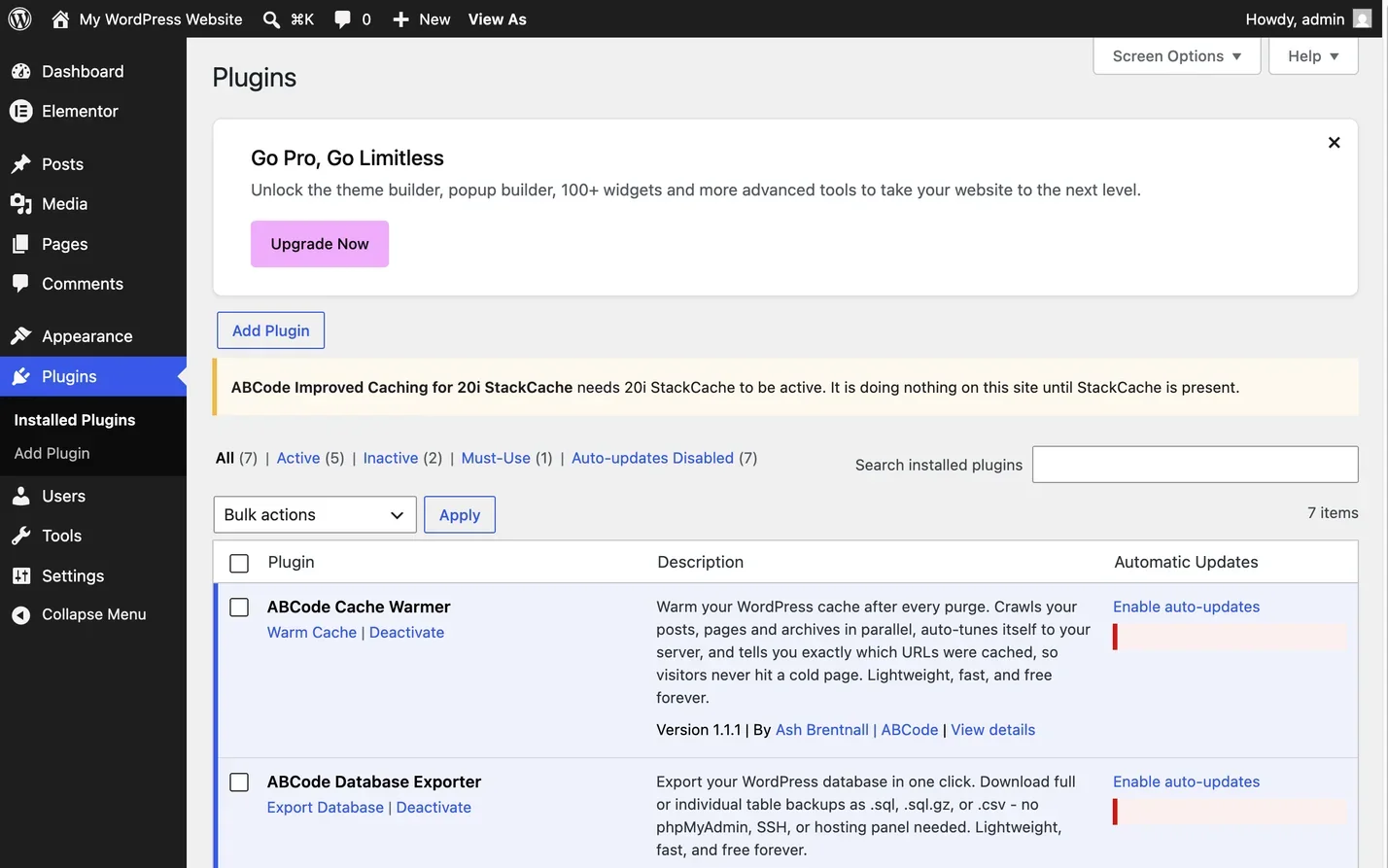
That is the safe behaviour, and it is the reason I built it that way. A cache plugin that half works on the wrong stack is worse than one that does nothing, because you spend a fortnight assuming your purges are covered when they are not. A plugin that sits quietly looking installed and useful while achieving nothing is how people end up debugging the wrong layer. This one announces itself as a no-op so you can uninstall it and go and look at the real cause.
What it is not
It is not a caching plugin. It does not cache anything and it will not make an uncached site faster. StackCache does the caching, this only widens what gets cleared. If there is no page cache in front of your site at all, this is not the plugin you need, and speeding up WordPress is a different conversation.
It knows nothing about CDNs. If Cloudflare or another CDN is holding a copy in front of 20i, that copy is untouched by any of this and has to be cleared in its own dashboard. The layers of caching in front of a typical site are worth understanding for exactly this reason, because clearing the wrong one feels identical to clearing the right one and changing nothing.
And it respects StackCache’s own settings rather than overriding them. It is an add-on, not a replacement.
How to check it worked
Publish a small change to an existing post: edit the title, update it. Then open the homepage and the category archive for that post in a private window, so nothing from your browser cache is involved.
The new title should be on both. If it is, the wider purge is running. Before the plugin, the post’s own URL would have updated and the listings would still show the old title, so that difference is the whole test.
If you have the cache warmer running too, the listing pages should also feel fast on that first load rather than slow, because they were rebuilt rather than left empty.
When it does not work
The notice says StackCache is missing
Take it at face value. StackCache is not enabled for the site. Check the 20i control panel, or ask your reseller, and turn it on. The plugin will start working straight away once it is.
The homepage is still stale in your browser only
Your own browser cache, or a service worker. Test in a private window, and check from your phone on mobile data. If it is fresh everywhere except the machine you edit from, nothing on the server is wrong.
The site is stale for everyone and the purge fired
Something in front of 20i is holding a copy. Cloudflare and other CDNs are the usual answer, and they need clearing in their own dashboard because nothing in WordPress can reach them. Work outwards through the layers rather than clearing everything repeatedly.
The post has not appeared anywhere at all
If the post is missing from its own URL as well as the listings, this is not a caching problem. Look at post status, the publish date and any query filter the theme applies to the loop before you touch a cache again.
Common questions
Do I need 20i StackCache for this to do anything?
Yes. It is a StackCache add-on and nothing else. Without StackCache it is a no-op, and it puts a notice in the admin telling you so.
Will purging slow down saving a post?
No. The purge runs as a short background task after the save, so the editor is not waiting on it.
Can it clear pages that are not on my site?
No. Every URL is checked against your own site’s host before anything is purged.
Do I need ABCode Cache Warmer as well?
No. It is optional. Install it if you would rather the purged pages were rebuilt straight away instead of by the next visitor.
Does it replace clearing StackCache from the control panel?
For publishing and editing, yes, that is exactly what it is for. The control panel is still there for the occasions when you want to clear everything by hand.
The short version
On 20i with StackCache, install ABCode Improved Caching for 20i StackCache and publishing a post starts clearing the pages that list it, not just the post’s own URL. There is nothing to configure. Add the cache warmer if you want those pages rebuilt immediately rather than by whoever arrives first.
Anywhere else, it does nothing on purpose and says so, which is the honest answer for a plugin built against one host’s cache. If your site is stale and you are not on 20i, the layer-by-layer approach in the caching article above will find the copy that is lying to you.
If caching on a client site has become a recurring argument rather than a one-off fix, that is usually a sign the purge policy needs setting up properly once. Get in touch if you would rather that was someone else’s afternoon.