Introduction
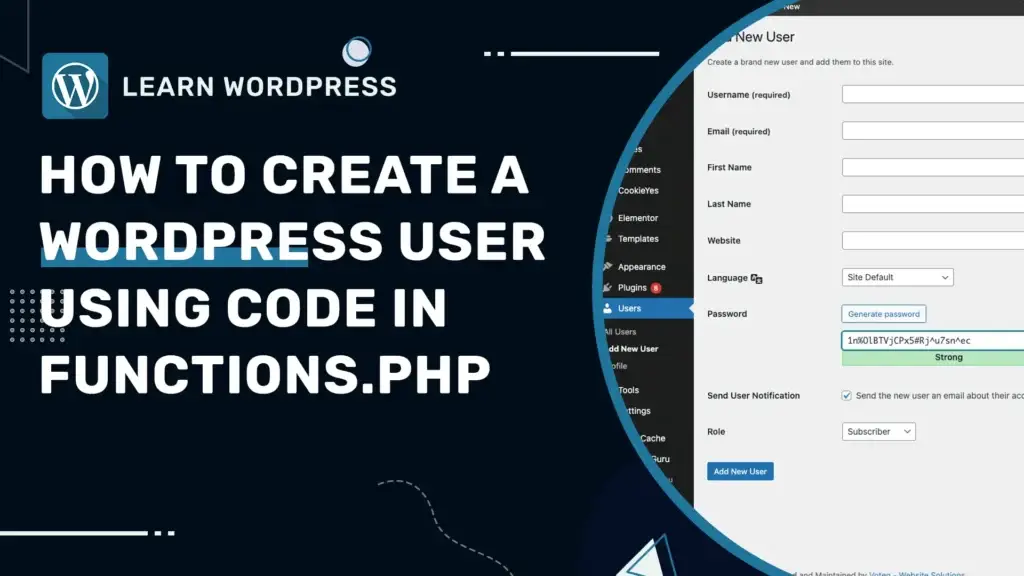
Adding users to WordPress is typically done through the admin panel, but there are times when you might need to automate this process or bypass the standard methods, such as when a client is locked out or when integrating with external systems.
In this tutorial, we’ll cover how to programmatically add a user to your WordPress site by using the functions.php file of your active theme. This method can help in various scenarios, including emergency recovery and user management automation.
Why Add Users Programmatically?
- Automation: Automate the user creation process as part of system integrations or to streamline site setup.
- Control: Precisely configure user roles and capabilities right from the start.
- Bulk Setup: Efficiently handle the setup of multiple users at once, which is ideal for new project launches or team expansions.
- Recovery Access: Quickly create a new administrator account if a client or user is locked out of the website.
How to implement the code
- Locate the file: Open the functions.php file of your active WordPress theme, usually located in
/wp-content/themes/your-theme-name/. - Insert the code: Paste the following PHP snippet into the functions.php file, ensuring it is placed outside any existing functions or conditional statements to avoid conflicts:
function add_new_user() {
    $userdata = array(
        'user_login'  => 'newuserlogin',
        'user_pass'   => 'A!StrongPassword',  // It's crucial to set a strong password here.
        'user_email'  => 'user@example.com',
        'role'        => 'subscriber'  // You can set different roles like subscriber, contributor, editor, or administrator.
    );

    $user_id = wp_insert_user( $userdata );  // The user's ID is returned.

    if ( is_wp_error( $user_id ) ) {
        echo "There was an error. Possible reason: the username or email is already in use.";
    } else {
        echo "User created : " . $user_id;
    }
}

// Without this line nothing calls the function, so nothing happens.
add_action( 'init', 'add_new_user' );- Save changes: After modifying the code, save the changes to the functions.php file. If working locally, upload the updated file to your server.
- Verify and clean up: Test logging in as the new user to confirm their account works correctly. Once verified, immediately remove or comment out the code snippet to prevent duplicate accounts or unauthorised access.
More options and customisation
When adding a new user to WordPress using the wp_insert_user() function, you can customise several parameters within the $userdata array to tailor the user’s profile and capabilities. Here’s a breakdown of the most commonly used options:
- user_login (required): The user’s login username. This should be unique to each user.
- user_pass (required): The user’s password. For security, ensure this is strong and ideally generated programmatically.
- user_email (required): The email address for the user. Each email must be unique within your WordPress database.
- role (optional): Sets the user’s role within WordPress (e.g.,
administrator,editor,subscriber). Leave it out and WordPress uses whatever New User Default Role is set to under Settings > General, which issubscriberunless someone has changed it. - user_url (optional): The URL of the user’s website.
- first_name (optional): The user’s first name.
- last_name (optional): The user’s last name.
- nickname (optional): The nickname for the user. This can be the same as the user login.
- display_name (optional): How the user’s name will be displayed on the site. It can be any combination of first name, last name, nickname, etc.
Here is how you can expand the initial code snippet to include these additional fields:
function add_new_user() {
    $userdata = array(
        'user_login'    => 'newuserlogin',
        'user_pass'     => 'A!StrongPassword',
        'user_email'    => 'user@example.com',
        'role'          => 'administrator',
        'user_url'      => 'https://www.userwebsite.com',
        'first_name'    => 'John',
        'last_name'     => 'Doe',
        'nickname'      => 'Johnny',
        'display_name'  => 'John Doe'
    );

    $user_id = wp_insert_user( $userdata );

    if ( is_wp_error( $user_id ) ) {
        echo "There was an error. Possible reason: the username or email is already in use.";
    } else {
        echo "User created : " . $user_id;
    }
}

add_action( 'init', 'add_new_user' );
Important Security Precautions
It’s crucial to remove the user creation code after use to ensure your website’s security. Leaving active scripts in your functions.php file can lead to accidental re-creation of users or exploitation by malicious parties.
Alternative Solutions
If you are locked out of your WordPress account and the password recovery option isn’t working, you can also update your password through the database to regain access. You can read our guide here.
Conclusion
Adding users through the functions.php file offers a powerful, flexible way to manage your WordPress site’s user roles and access, especially in urgent or automated scenarios. This method ensures you can always maintain control over your site’s access, even in unexpected situations.
If you are locked out and editing functions.php is not an option either, that is the point where it stops being a quick fix. We deal with exactly this in WordPress fixes and repairs.