You drag a 40 MB PDF into the media library and WordPress tells you the file exceeds the maximum upload size for this site. Nothing you change in the WordPress settings screens makes any difference, because there is no WordPress setting for it. The limit comes from PHP, and sometimes from the web server sitting in front of PHP.
That is why guides on this contradict each other. They each describe one route, and whether that route works depends entirely on how your host runs PHP. On one server an .htaccess line fixes it in ten seconds. On the next, the same line takes the whole site down with a 500 error.
Below is how to find your current limit, the three values that have to move together, and every route in the order I would actually try them. By the end you will either have a higher limit, or you will know which layer is blocking you and who has to change it.
Start at Route 1 and stop as soon as it works. On a lot of UK hosting that is two sliders in your hosting panel and you never touch a file. The routes after it get progressively more technical, and they are there for when the easy one is not available.
Before you start
Depending on how far down the list you get, you will need your hosting control panel login (cPanel, Plesk, SiteGround Site Tools, Cloudways or your host’s own dashboard). For the file-based routes you need SFTP, a secure way of copying files to and from your server with a free program like FileZilla, or the File Manager built into your hosting panel. Those files live in the WordPress root, which is the top-level folder of your site, the one holding wp-config.php and the wp-content folder. On fully managed hosting you may need a support ticket instead, because the file that decides this sits outside your account.
Editing .htaccess, php.ini or wp-config.php breaks the site instantly if the syntax is wrong. Take a copy of the original on your own machine before you touch it, not just on the server. A one-character typo in wp-config.php gives you a blank white screen, and the only way back is putting the original file back, so keep your SFTP or File Manager window open the whole time you work.
Step 1: Find out what the current limit actually is
Two places tell you, and it is worth checking both.
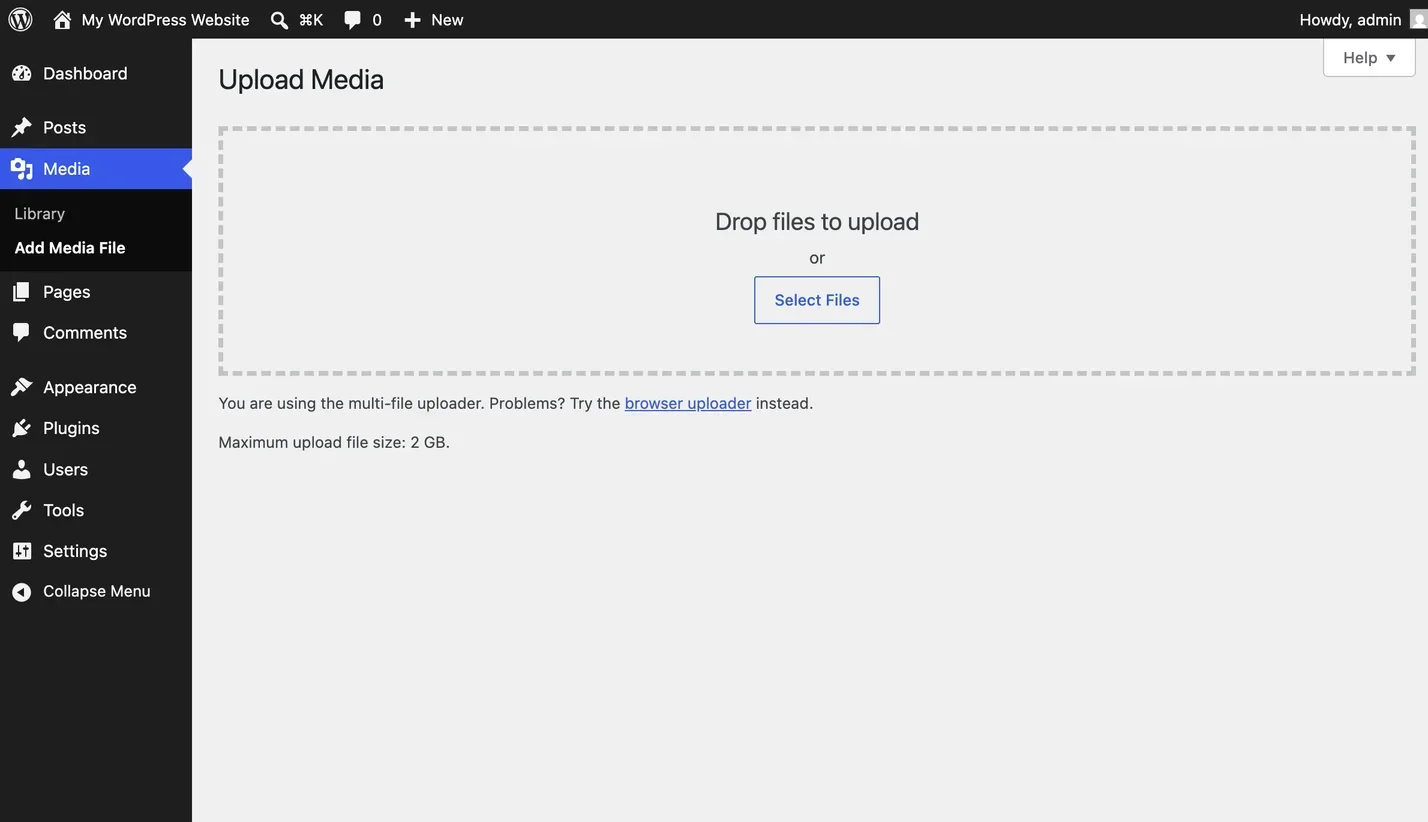
The media uploader is the quick one. Go to Media > Add Media File and look under the upload box. WordPress prints “Maximum upload file size: 2 MB” or similar.
The useful one is Tools > Site Health > Info > Media Handling. That panel lists the real PHP values behind the limit: max size of an uploaded file (upload_max_filesize), max size of post data allowed (post_max_size) and max effective file size, which is the lower of the two. The memory limit is in the Server panel above it. Read these, because they tell you which value is the bottleneck rather than just the outcome.
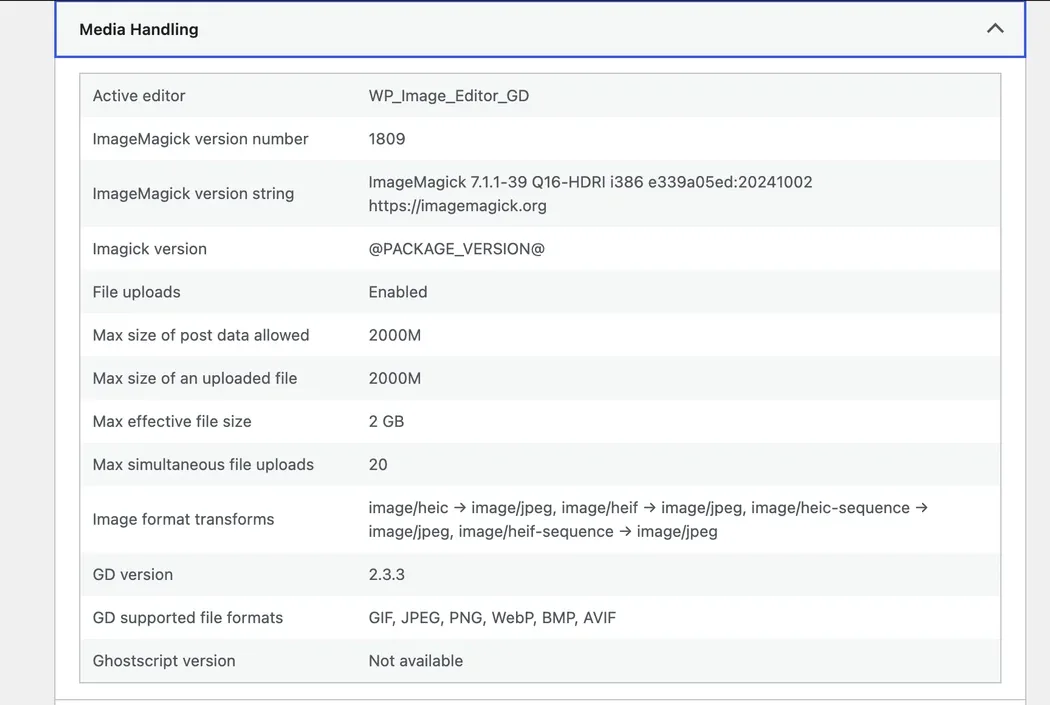
Write the numbers down before you change anything. Half the frustration with this job comes from raising one value, seeing no change, and assuming the edit did not save.
Step 2: Understand the three values that must move together
WordPress reports the lowest of the relevant limits, so raising one on its own usually does nothing at all.
upload_max_filesizeis the largest single file PHP will accept. This is the number most people find and change.post_max_sizeis the largest total amount of data PHP will accept in one submission. That means the file plus every other bit of information sent with it, such as the title and the alt text. It must be larger thanupload_max_filesize. Ifpost_max_sizeis 8 MB and you setupload_max_filesizeto 64 MB, your effective limit is still 8 MB.memory_limitis how much RAM a single PHP process may use. It does not cap the upload itself, but WordPress has to load and resize the image after the upload finishes, and a large JPEG will exhaust a 64 MB limit while it generates thumbnails. You get a successful upload followed by a broken or missing image.
My rule of thumb: set post_max_size comfortably above upload_max_filesize, and set memory_limit well above both. For a 64 MB target, upload_max_filesize = 64M, post_max_size = 128M, memory_limit = 256M is a sensible shape.
Raise max_execution_time and max_input_time at the same time if the connection is slow. They cap how long the request may run and how long PHP will spend reading the incoming data, and a large upload on a domestic line can easily exceed the default 30 seconds, then fail silently at the end.
Which of the routes below actually works depends on how your host runs PHP, so it is worth seeing the shape of it before you start.
Route 1: The host’s control panel or PHP settings screen
This is where I start every time, and on most UK shared hosting it is where the job ends.
In cPanel, look for MultiPHP INI Editor, choose your domain, and use the Basic Mode sliders for upload_max_filesize, post_max_size and memory_limit. In Plesk it is Websites & Domains > PHP Settings. SiteGround, Cloudways, Kinsta, WP Engine and most other managed hosts have an equivalent panel or set generous limits already.
The reason to start here is not laziness. A control panel writes the values into the configuration your server actually reads, at the right scope, in the right syntax, and the change survives a PHP version upgrade. Every route below is a workaround for not having this screen.
If the panel caps out below what you need, open a ticket rather than fighting it. On shared hosting the cap is usually deliberate, and there is often a hard server-level limit you cannot exceed from inside your account.
Route 2: php.ini
There is more than one way for a server to run PHP, and which one your host uses decides whether Route 2 or Route 3 works. The two you will see named are mod_php, where PHP runs as part of the Apache web server itself, and PHP-FPM (also called CGI or FastCGI), where PHP runs as a separate service the web server hands work to. Most modern hosting uses PHP-FPM. Site Health reports the answer under Server, as the “PHP SAPI” value, and if it says anything containing fpm or cgi you are on this route rather than the .htaccess one below.
On PHP-FPM, a php.ini file in your account can set these values. Where it goes varies: some hosts read one from your home directory, some from the web root, some ignore per-account files entirely.
; Largest single file PHP will accept
upload_max_filesize = 64M

; Total size of the whole POST request, must exceed the value above
post_max_size = 128M

; RAM available to the process that resizes the image afterwards
memory_limit = 256M

; Seconds the script may run, and seconds PHP will spend reading the upload
max_execution_time = 300
max_input_time = 300
Two gotchas. Values need the M suffix with no space and no B, so 64M and never 64MB. And on PHP-FPM the change does not apply until the process pool restarts, which some hosts do on a schedule rather than instantly.
Route 3: .htaccess, on Apache with mod_php only
On an Apache server running PHP as a module, you can set the values in .htaccess. That is a configuration file sitting in your WordPress root, and WordPress already put one there for its own permalinks. It starts with a dot, so your SFTP program or File Manager may need “show hidden files” turning on before you can see it.
# Only works when PHP runs as an Apache module (mod_php) or under LiteSpeed.
# On PHP-FPM this file causes an immediate 500 error on every page.
php_value upload_max_filesize 64M
php_value post_max_size 128M
php_value memory_limit 256M
php_value max_execution_time 300
php_value max_input_time 300
Put these above the # BEGIN WordPress block so WordPress does not overwrite them when it rewrites its own rules.
I have listed this third rather than first for a reason. Most hosting has moved to PHP-FPM, where Apache has no idea what php_value means and shows “500 Internal Server Error” on every page, front end and admin alike. A 500 is the server’s way of saying it hit something it could not deal with and gave up, so you lose the whole site, not just the media library. The way back is simple: delete the lines you added, save, and the site returns on the next page load. That is why you keep the file open rather than closing everything and hoping. If deleting them does not bring it back, something else was already wrong, and that is where fixing a broken site becomes a job rather than a tweak.
LiteSpeed servers are the exception. They understand php_value in .htaccess despite not being mod_php, which is why this route works on some hosts that look like they should reject it.
Route 4: .user.ini
This is the counterpart to .htaccess for FastCGI and PHP-FPM setups, and it is the route I reach for when there is no control panel option. Create a file called .user.ini in the WordPress root (the folder holding wp-config.php) containing:
upload_max_filesize = 64M
post_max_size = 128M
memory_limit = 256M
max_execution_time = 300
Same syntax as php.ini, because it is the same format. The difference is scope: .user.ini applies to that directory and everything below it, and only directives PHP marks as changeable per directory take effect. The three that matter here all qualify.
The gotcha that catches everyone: PHP caches .user.ini files rather than reading them on every request, for 300 seconds out of the box. Hosts do change that, so if five minutes passes and nothing has moved, give it a little longer before deciding it failed. Make the edit, wait, then reload Site Health.
Route 5: wp-config.php, for memory only
wp-config.php cannot change upload_max_filesize or post_max_size. It can raise the memory WordPress asks PHP for:
// Memory available to normal front-end requests.
define( 'WP_MEMORY_LIMIT', '256M' );

// Memory available in wp-admin, where image resizing and imports happen.
define( 'WP_MAX_MEMORY_LIMIT', '512M' );
These go above the /* That's all, stop editing! */ line. WordPress uses them to attempt an increase at runtime, and the attempt fails silently if your host has locked memory lower. Worth doing, but not a substitute for the real PHP settings.
You will also see snippets that use the upload_size_limit filter to return a bigger number. A filter is a point where code can change an answer WordPress has already worked out, and in this case the answer is only the figure WordPress prints on screen and checks against before it tries. PHP still rejects the file. All you have done is turn a clear error message into a confusing failed upload, so avoid these.
Route 6: The multisite setting that overrides everything else
Multisite is the WordPress mode where one installation runs several sites from a single admin, and if you are not sure whether you are on it, you are not. If you are, there is a network setting that quietly caps every site regardless of what PHP allows.
Go to Network Admin > Settings > Network Settings and find Upload Settings. “Max upload file size” is expressed in kilobytes, and the default is 1500, which is roughly 1.5 MB. You can set PHP to 512 MB and this will still hold every upload to 1.5 MB.
Set it to the value you want in KB (65536 for 64 MB), and check the allowed file types list on the same screen while you are there. Nothing in the error message hints that the network is the thing saying no, which is what makes this one expensive in time.
nginx needs client_max_body_size, and WordPress cannot help
nginx is one of the two common web servers, the piece of software that takes the visitor’s request and decides what to do with it. Apache is the other. Site Health tells you which you have under Server. If you are on nginx, there is a limit that has nothing to do with PHP at all. nginx measures how much data you are sending before it hands anything to PHP, and its default client_max_body_size is 1 MB.
When nginx rejects an upload you get “413 Request Entity Too Large”, usually as a bare nginx error page rather than a WordPress message. That 413 is the tell. No .htaccess, .user.ini, php.ini or wp-config change will fix it, because PHP never saw the request.
The fix lives in the nginx configuration, in the http, server or location block:
# Allow request bodies up to 128MB. Note the M suffix, and no space.
client_max_body_size 128M;
nginx then needs a config test and a reload to pick the change up. If you rent a whole server (a VPS) you do that yourself. On managed hosting you cannot reach the file at all, so it is a support ticket, and quoting the 413 tells them immediately which limit you mean. The same applies to anything else sitting in front of your site, such as Cloudflare or another CDN, which is a network that serves your site from servers closer to the visitor. Anything the request passes through can impose its own size cap.
How to check it worked
Go back to Tools > Site Health > Info > Media Handling and read the numbers. That panel reports what PHP is currently running with, not what you wrote in a file, so it is the only confirmation that counts.
Then actually upload something large. A real file close to your new limit tests the whole path: nginx, PHP, memory during thumbnail generation, and the disk. A settings screen showing 64 MB while a 50 MB upload still fails means you moved one limit and left another in place.
When it does not work
The whole site returns a 500 error after editing .htaccess
Your server runs PHP-FPM, which does not understand php_value. Remove the lines you added and the site recovers immediately. Use .user.ini instead.
Site Health still shows the old numbers
Three usual causes. On .user.ini, the five minute cache has not expired. On php.ini with PHP-FPM, the process pool has not restarted. Or your file is in the wrong directory, which for .user.ini means anywhere other than the folder containing wp-config.php.
The number went up but uploads still fail at the same size
Check post_max_size. WordPress reports the effective limit as the lowest of the values, and post_max_size is the one people forget. Site Health lists it separately for exactly this reason.
The upload finishes, then the image is broken or missing
The file arrived and PHP ran out of memory generating the thumbnail sizes. Raise memory_limit, and consider whether the source image needs to be that large. A 6000 pixel wide photo straight off a camera does not belong on a web page, and shrinking it before upload solves the problem permanently.
You get 413 Request Entity Too Large
That is nginx, not WordPress. See the client_max_body_size section above.
One specific file fails while others of the same size work
Check the extension against the allowed file types. WordPress blocks unrecognised types regardless of size, and on multisite that list is a network setting.
Common questions
What is a sensible maximum upload size?
64 MB covers almost every legitimate case: large PDFs, print-resolution images, a design source file. I only go above that when there is a specific reason. A high limit is not free, because it also raises the ceiling on what a compromised account can push onto your server.
Why does WordPress have a limit at all?
It is inherited from PHP’s defaults, which stop a single request tying up server memory and bandwidth. On shared hosting the cap also protects every other site on the machine.
Should I upload video files to WordPress?
No, and this is the part most guides skip. Even if you raise the limit to 500 MB and the upload succeeds, your server then has to stream that file to every visitor with no adaptive bitrate, no transcoding and no CDN. Playback stutters on mobile, your bandwidth bill goes up, and the video drags down your page speed. Put it on YouTube, Vimeo or a host like Bunny Stream and embed it. If page speed is why you are here in the first place, speed optimisation starts with getting large media off the origin server, not with raising limits.
Why is my uploaded image smaller than the original?
Since WordPress 5.3, images wider or taller than 2560 pixels get scaled down and the scaled version is used on the site. The original is kept. It is a deliberate performance decision and it is usually the right one, so I would leave it alone unless you have a genuine need for full resolution downloads.
Do I need a plugin for this?
No. Plugins that claim to raise the upload size mostly apply the upload_size_limit filter, which does nothing when PHP is the thing saying no.
Where this leaves you
The limit is a stack, not a single setting. nginx checks first, then PHP checks post_max_size and upload_max_filesize, then WordPress applies its own filters and, on multisite, the network cap. Whichever is lowest is your real limit, and the fix always belongs at that layer.
Start at your host’s control panel, because it is the only route that is both safe and durable through PHP upgrades. Fall back to .user.ini if there is no panel, keep .htaccess for genuine Apache-with-mod_php servers, and treat a 413 as the signal to stop editing WordPress files and talk to your host.
If you would rather not spend an afternoon working out which configuration layer your host uses, this is the sort of thing that gets handled quietly as part of a maintenance plan. Otherwise, get in touch and I will take a look.