Sooner or later a site outgrows Posts and Pages. Case studies, properties, courses, team members, events: things that need their own list, their own template and their own admin menu. The usual answer is a generator plugin like Custom Post Type UI, which writes the registration for you and stores it in the database.
I do not use those on client sites. The definition ends up as rows in wp_options rather than in version control, it does not travel with a deployment, and if the plugin is ever deactivated the content becomes invisible while still sitting in the database. Twenty lines of PHP does the same job, is readable, and can be reviewed like any other code.
By the end of this you will have a case study post type with a matching taxonomy, proper labels, working permalinks, block editor support, and a template that renders it. I will also cover the rewrite flush that catches nearly everyone out, and the cases where a custom post type is the wrong answer entirely.
One note on the title: “without a plugin” means without a generator plugin. The code still belongs in a small plugin of your own rather than in functions.php, and I will explain why in Step 1.
Before you start
You need SFTP or SSH access to the site, or a file manager in your hosting panel. You will be creating a new folder under /wp-content/plugins/.
Take a backup first if the site is live. Registering a new post type does not touch existing content, but a PHP syntax error in a plugin file will take the site down with a fatal error until you fix or delete it. If that happens, deleting the folder over SFTP restores the site immediately. Test on staging if you have one.
You should be comfortable editing PHP. If you would rather not be, this is exactly the sort of job I do as custom plugin development.
Step 1: Put the code in a site-specific plugin, not functions.php
Almost every tutorial says to paste this into your theme’s functions.php. That is wrong for content types, for two reasons.
The first is the obvious one: a theme update overwrites functions.php, and unless you are using a child theme your post type disappears. The second is more important. Content is not presentation. If you redesign the site in two years and switch themes, your case studies should still exist. Tying their registration to a theme means the day someone activates a different theme, hundreds of posts vanish from the admin and every single URL 404s. The posts are still in the database, but nothing is registered to display them.
So create a plugin. It is one folder and one file:
<?php
/**
 * Plugin Name: Site Content Types
 * Description: Registers the custom post types and taxonomies this site depends on.
 * Version:     1.0.0
 * Author:      Your Name
 * License:     GPL-2.0-or-later
 */

// Stop the file being loaded directly over HTTP.
defined( 'ABSPATH' ) || exit;

define( 'SITE_CONTENT_TYPES_VERSION', '1.0.0' );
Save that as /wp-content/plugins/site-content-types/site-content-types.php and activate it under Plugins. It does nothing yet. Everything below goes in the same file.
Step 2: Write the labels properly
Labels are the part everyone half-fills. You get name and singular_name in, WordPress guesses the rest, and the admin ends up saying “Post published” when you save a case study. It looks unfinished, and clients notice.
function site_case_study_labels(): array {
	return array(
		'name'                  => _x( 'Case Studies', 'post type general name', 'site-content-types' ),
		'singular_name'         => _x( 'Case Study', 'post type singular name', 'site-content-types' ),
		'menu_name'             => _x( 'Case Studies', 'admin menu', 'site-content-types' ),
		'name_admin_bar'        => _x( 'Case Study', 'add new on admin bar', 'site-content-types' ),
		'add_new_item'          => __( 'Add New Case Study', 'site-content-types' ),
		'new_item'              => __( 'New Case Study', 'site-content-types' ),
		'edit_item'             => __( 'Edit Case Study', 'site-content-types' ),
		'view_item'             => __( 'View Case Study', 'site-content-types' ),
		'view_items'            => __( 'View Case Studies', 'site-content-types' ),
		'all_items'             => __( 'All Case Studies', 'site-content-types' ),
		'search_items'          => __( 'Search Case Studies', 'site-content-types' ),
		'not_found'             => __( 'No case studies found.', 'site-content-types' ),
		'not_found_in_trash'    => __( 'No case studies found in Trash.', 'site-content-types' ),
		'featured_image'        => __( 'Case study image', 'site-content-types' ),
		'set_featured_image'    => __( 'Set case study image', 'site-content-types' ),
		'archives'              => __( 'Case study archives', 'site-content-types' ),
		// These two drive the toast messages in the block editor.
		'item_published'        => __( 'Case study published.', 'site-content-types' ),
		'item_updated'          => __( 'Case study updated.', 'site-content-types' ),
	);
}
_x() takes a context string as its second argument, which matters when the same English word translates differently depending on where it appears. If the site is English only it changes nothing, but it costs nothing either.
Step 3: Register the taxonomy and the post type
Register taxonomies before post types. WordPress will cope either way, but the ordering keeps the relationship obvious and avoids surprises with show_admin_column.
add_action( 'init', 'site_register_content_types' );

function site_register_content_types(): void {

	register_taxonomy(
		'case_study_sector',
		array( 'case_study' ),
		array(
			'labels'            => array(
				'name'          => __( 'Sectors', 'site-content-types' ),
				'singular_name' => __( 'Sector', 'site-content-types' ),
				'add_new_item'  => __( 'Add New Sector', 'site-content-types' ),
			),
			'public'            => true,
			'hierarchical'      => true,  // behaves like categories; false behaves like tags
			'show_admin_column' => true,  // adds a Sector column to the list table
			'show_in_rest'      => true,  // required for the taxonomy panel in the block editor
			'rewrite'           => array( 'slug' => 'sector', 'with_front' => false ),
		)
	);

	register_post_type(
		'case_study',
		array(
			'labels'          => site_case_study_labels(),
			'public'          => true,
			'has_archive'     => 'case-studies',
			'rewrite'         => array( 'slug' => 'case-studies', 'with_front' => false ),
			'supports'        => array( 'title', 'editor', 'excerpt', 'thumbnail', 'revisions', 'page-attributes' ),
			'taxonomies'      => array( 'case_study_sector' ),
			'menu_icon'       => 'dashicons-portfolio',
			'menu_position'   => 20,
			'show_in_rest'    => true,
			'rest_base'       => 'case-studies',
			'capability_type' => 'post',
			'map_meta_cap'    => true,
			'hierarchical'    => false,
			'delete_with_user' => false, // deleting a user must not delete the case studies
		)
	);
}
The arguments that actually change something:
public is a shorthand that sets four other arguments at once: publicly_queryable, show_ui, show_in_nav_menus and exclude_from_search. Set it to true for anything visitors should see. Set it to false and add 'show_ui' => true for internal records that editors manage but nobody browses, such as enquiry logs.
has_archive gives you a list page at /case-studies/. Passing true uses the post type key as the slug, which would give you /case_study/ with an underscore. Passing a string sets the slug explicitly, which is what you want.
rewrite controls the single post URL. with_front => false stops WordPress prefixing your URLs with whatever is at the start of your permalink structure, so you get /case-studies/acme/ rather than /blog/case-studies/acme/.
supports decides which panels appear in the editor. Leave out editor and you get a title-only record, which is right for things like team members whose content lives in custom fields. Leave out thumbnail and the featured image box never appears, no matter what the theme does. page-attributes gives you the menu order field, which is how you let someone hand-sort a portfolio.
show_in_rest is not optional. Without it the post type opens in the classic editor, not the block editor, and it is invisible to the REST API. That means no headless front end, no block editor, and several modern plugins simply will not see the post type. If you want a different endpoint path from the post type key, set rest_base as well. There is no good reason to leave this off in WordPress 6.x.
menu_icon takes a Dashicons class such as dashicons-portfolio, a data URI for an inline SVG, or 'none' if you want to style it in CSS yourself.
capability_type is the one to be careful with. 'post' means anyone who can edit posts can edit case studies, which is usually correct. If you set it to something custom such as 'case_study', WordPress starts checking for capabilities like edit_case_studies that no role has, so every user including the administrator is locked out of the post type. Only use custom capabilities when you intend to grant them explicitly with WP_Role::add_cap(), and set map_meta_cap => true so the per-post checks resolve correctly.
One constraint worth knowing: the post type key has a maximum of 20 characters and should be lowercase with underscores. Prefix it if there is any chance of a clash, because two plugins registering event on the same site is a genuinely miserable afternoon.
Step 4: Flush rewrite rules correctly
This is the trap. You save the file, the admin menu appears, the archive at /case-studies/ might even load, and every single case study returns a 404. Nothing in the code is wrong.
WordPress stores its URL rules in a single option in the database. Registering a post type adds rules to the in-memory set for that request, but it does not save them. Until they are saved, WordPress does not know that /case-studies/acme/ should map to your post type, so it falls through to the 404 handler.
The fix is to flush once, on plugin activation. And there is a subtlety: when the plugin is activated, WordPress has already run init for that request, so your registration callback has not fired. You have to call it yourself before flushing.
register_activation_hook( __FILE__, 'site_content_types_activate' );

function site_content_types_activate(): void {
	// init has already fired by the time an activation hook runs, so the
	// post type is not registered yet. Register it, then flush.
	site_register_content_types();
	flush_rewrite_rules();
}

register_deactivation_hook( __FILE__, 'site_content_types_deactivate' );

function site_content_types_deactivate(): void {
	// The post type is gone on the next request, so clear its stale rules.
	flush_rewrite_rules();
}
Never call flush_rewrite_rules() on init. It rebuilds every rewrite rule on the site and writes them to the database on every single page load, for every visitor. It is one of the most reliable ways to make a site slow, and I have found it in the wild more than once while doing speed optimisation work.
Activation hooks do not re-fire when a plugin is updated, so if you later change the archive slug the rules will be stale again. Handle that with a version check that flushes once and then records that it has done so:
add_action( 'init', 'site_content_types_maybe_flush', 20 ); // after registration at priority 10

function site_content_types_maybe_flush(): void {
	if ( get_option( 'site_content_types_version' ) === SITE_CONTENT_TYPES_VERSION ) {
		return; // already flushed for this version, do nothing
	}

	flush_rewrite_rules();
	update_option( 'site_content_types_version', SITE_CONTENT_TYPES_VERSION, false );
}
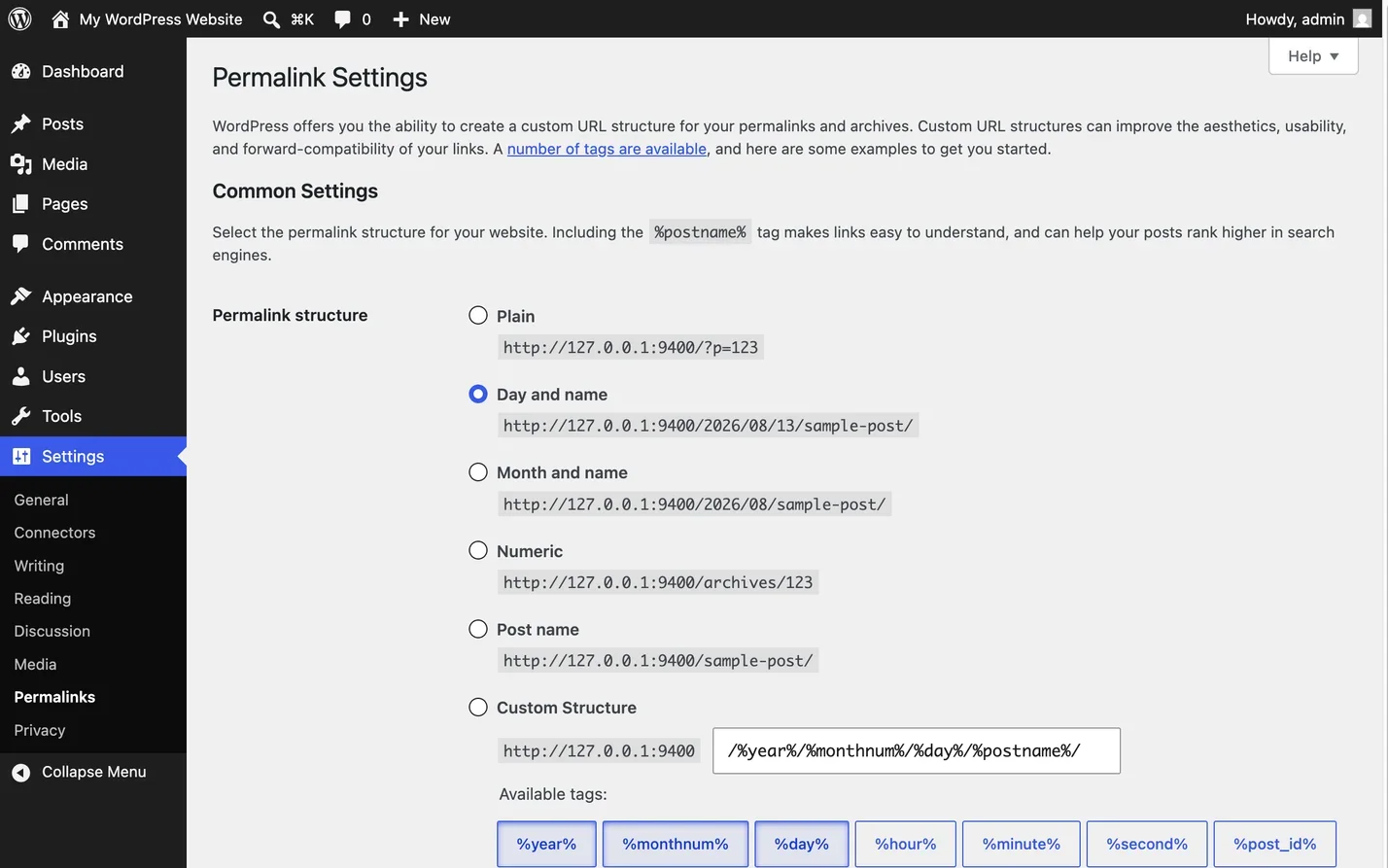
Bump the version constant whenever you change a slug and the flush happens exactly once. If you are ever stuck without code access, visiting Settings then Permalinks and clicking Save does the same thing manually.
Step 5: Add templates and query the post type
WordPress works down a list of filenames until it finds one that exists, which is why a brand new post type still renders something before you have written a single template. Switch between the two views to see the order it tries.
WordPress finds templates by the post type key, so in a classic theme create single-case_study.php and archive-case_study.php in your theme folder. Note the underscore: the filename matches the key, not the pretty slug. In a block theme the equivalents are templates/single-case_study.html and templates/archive-case_study.html.
To pull case studies into a page, use WP_Query rather than query_posts(), which breaks the main query and should never appear in a theme:
$case_studies = new WP_Query(
	array(
		'post_type'      => 'case_study',
		'post_status'    => 'publish',
		'posts_per_page' => 6,
		'no_found_rows'  => true, // skips the pagination count query when you are not paginating
		'tax_query'      => array(
			array(
				'taxonomy' => 'case_study_sector',
				'field'    => 'slug',
				'terms'    => 'hospitality',
			),
		),
	)
);

if ( $case_studies->have_posts() ) {
	while ( $case_studies->have_posts() ) {
		$case_studies->the_post();
		// Your markup here. the_title(), the_permalink(), the_post_thumbnail().
	}
	wp_reset_postdata(); // restores the global $post so the rest of the page still works
}
Forgetting wp_reset_postdata() is the cause of the classic “my sidebar shows the wrong title” bug.
To change the archive itself, filter the main query rather than running a second one:
add_action( 'pre_get_posts', 'site_case_study_archive_query' );

function site_case_study_archive_query( WP_Query $query ): void {
	// Only the front end, and only the main query, or you will affect the admin too.
	if ( is_admin() || ! $query->is_main_query() ) {
		return;
	}

	if ( $query->is_post_type_archive( 'case_study' ) ) {
		$query->set( 'posts_per_page', 12 );
		$query->set( 'orderby', array( 'menu_order' => 'ASC', 'date' => 'DESC' ) );
	}
}
How to check it worked
Four things, in order. The Case Studies menu appears in the admin sidebar with your portfolio icon. Adding a new one opens the block editor rather than the classic editor, and the Sectors panel is in the sidebar. Publishing one and clicking View gives you /case-studies/your-title/ with a 200, not a 404. And /case-studies/ lists them.
If you want to confirm the REST side, open /wp-json/wp/v2/case-studies in a browser while logged in. A JSON array means show_in_rest and rest_base are both doing their jobs.
When it does not work
Single posts 404 but the archive loads
Rewrite rules have not been saved. Deactivate and reactivate the plugin, or go to Settings then Permalinks and click Save Changes. If it comes back after a while, something else on the site is flushing or caching rules badly.
The post type disappeared after a theme change
The registration was in functions.php rather than a plugin. The content is safe in wp_posts; move the code into a plugin as above and everything reappears.
The editor is the classic one, not blocks
show_in_rest is missing or set to false. Add it and reload the edit screen.
Nobody can edit the post type, including admins
capability_type was set to something custom without granting the capabilities. Change it back to 'post', or add the capabilities to the roles that need them.
The archive URL clashes with a page
If a page already exists at /case-studies/, one of them wins and it is usually not the one you want. Rename the page or change the archive slug, then flush.
A fatal error took the site down
Rename the plugin folder over SFTP. WordPress deactivates a plugin it cannot find and the site returns. Fix the syntax, rename it back, reactivate. This is the standard recovery move and it is worth knowing before you need it, along with the rest of getting a broken site working again.
Common questions
Should I use a custom post type or a category?
If the items are the same kind of thing with a label on them, use a taxonomy. News and Announcements are both posts. If they have different fields, a different template and a different place in the site, they are a different post type. Ask whether you would ever want them mixed in one list. If yes, they are one post type with a taxonomy.
When is a custom field the better answer?
When you are adding information to something that already exists rather than creating a new thing. A “Downloadable brochure” attached to a product is a custom field, not a Brochures post type. A rough rule: if it never needs its own URL, it probably is not a post type.
Will my existing posts move into the new type?
No. Registering a post type does not move anything. To convert existing posts you change their post_type value, which is a database operation and needs a backup first.
Do I need Advanced Custom Fields for this?
Not for the post type itself. ACF is for the extra fields on it. Native register_post_meta() with show_in_rest covers simple cases without another dependency.
Can I hide a post type from search results?
Yes. Set 'exclude_from_search' => true explicitly. Note that setting public => true sets it to false for you, so you have to state it yourself for it to stick.
What you have now
You have a case study post type and a sector taxonomy defined in code, in a plugin that survives theme changes, with labels that read properly and permalinks that resolve. It is in a file you can commit, review and deploy like anything else. Adding the next post type is a copy of the same twenty lines.
The part worth remembering is the flush. Registration is cheap and forgiving; rewrite rules are not, and the difference between flushing on activation and flushing on init is the difference between a fast site and a slow one. Get that right and the rest of it is just arguments.
If you are mapping out a content structure and are not sure whether something wants to be a post type, a taxonomy or a field, that decision is worth getting right before you build on top of it. It is the sort of thing I work through at the start of a website build, and I am happy to talk it over.