A completely blank white page, no error, no logo, nothing. Right-click and choose “View page source” and there is barely anything there. This is the white screen of death. It means PHP, the language WordPress is written in, hit what is called a fatal error: it ran into something it could not deal with, gave up halfway through building the page, and sent you the little it had.
The good news is that this is almost never data loss. Your posts, pages and images are sitting in the database and on disk exactly as they were. Some code stopped running, and once you stop whatever caused that, the site comes straight back, usually in a couple of minutes.
The steps below run in the order that gets a working site fastest: check your email, because WordPress may already have sent you the answer, then see the real error, then switch off whatever caused it from outside the admin. You do not need to understand PHP to do any of this. If you have five minutes and a customer waiting, the two quickest routes are the fatal error email in Step 1 and renaming the plugins folder in Step 3.
Before you start
You want at least one of these, ideally two:
- SFTP or FTP access, or the File Manager in your hosting control panel. These are all ways of getting at the files that make up your site, either with a free program like FileZilla or straight from a browser. This is the main route and it covers most cases.
- Database access via phpMyAdmin, the database editor most hosting panels include, for when file access alone is not enough.
- SSH with WP-CLI, if your host provides it. SSH is a terminal connection to your server and WP-CLI is the command line version of WordPress. Fastest of the lot if you already have both, and completely skippable if you do not.
- Access to the admin email inbox, for the recovery link. This one costs nothing to check and is the first step below.
Take a backup before you change anything, files and database together. Most hosts have a one-click restore point and it takes a minute. You want a way back if a fix turns out to be the wrong fix.
One check before pulling files apart: load the site in a private window. Caching plugins and CDNs (the networks like Cloudflare that keep copies of your pages) will serve a stored blank page long after the problem is fixed, and people waste hours chasing a bug that is already dead.
Step 1: Check the admin inbox for the fatal error email
Since WordPress 5.2 there has been a feature most people have never heard of, and it solves this outright surprisingly often.
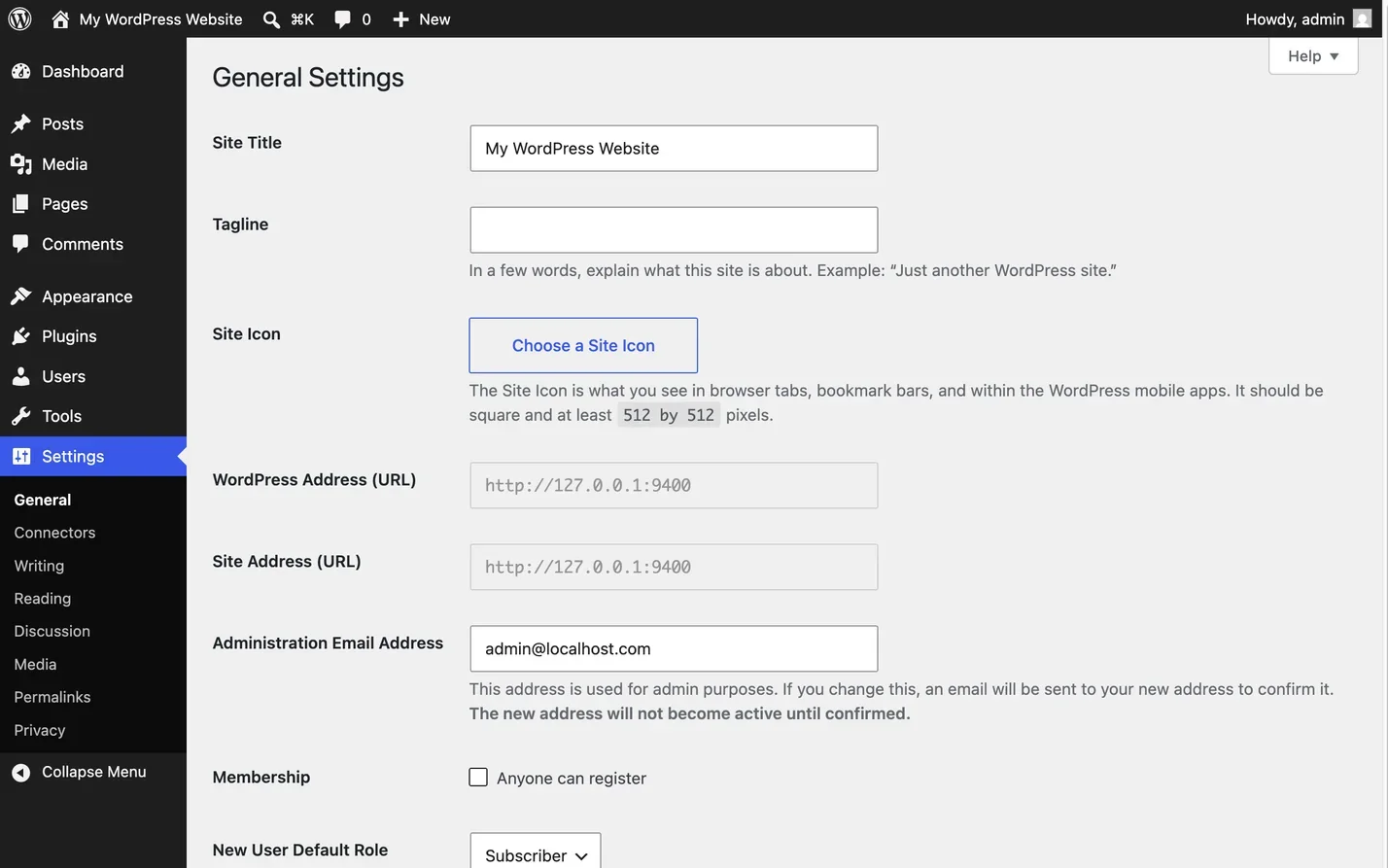
When a plugin or theme causes a fatal error, WordPress catches it and emails the address in Settings, General, under Administration Email Address. The subject reads “Your Site is Experiencing a Technical Issue”, with your site name in front of it. Inside you get:
- The name of the plugin or theme that broke.
- The error itself, with its type, file and line, under a heading of Error Details.
- A recovery mode link, valid for one day.
Click that link and you land on the login screen with recovery mode switched on, so sign in as you normally would. From there the broken plugin or theme is paused for your session only, which is what lets wp-admin load at all. Visitors carry on seeing the critical error page until you deal with it, so go to Plugins, deactivate the offender, then click “Exit Recovery Mode”.
So last week’s email is no use. Check the spam folder, and check the administration email is one you actually read, because on a lot of sites it is still the original developer’s.
Recovery mode has limits. It only catches errors WordPress can pin on a plugin or a theme. An error in wp-config.php or in WordPress itself happens too early for WordPress to catch it at all. A must-use plugin is caught, but WordPress can only name a culprit sitting in the plugins or themes folders, and a must-use plugin is in neither, so no email is sent for that either. Must-use plugins are ones sitting in a special wp-content/mu-plugins folder, loaded automatically and impossible to switch off from the admin, and some hosts and security products install them without saying much about it. If no email arrives, move on to Step 2.
Step 2: See the actual error instead of a blank page
Guessing is slow. The error message is fast, and it usually names the exact file that broke.
Open wp-config.php and add the lines below. That file sits in the site root, meaning the top-level folder of your site, alongside the wp-content folder. Put them just above the line reading /* That's all, stop editing! Happy publishing. */. Save a copy of the file on your own machine before you edit it, because a stray character in wp-config.php will keep the site white and putting the original back is your way out.
// Turn on error reporting.
define( 'WP_DEBUG', true );

// Send errors to a file, not to the browser.
define( 'WP_DEBUG_LOG', true );

// Keep errors off the page so visitors never see them.
define( 'WP_DEBUG_DISPLAY', false );
@ini_set( 'display_errors', 0 );
Reload the broken page, then open wp-content/debug.log. The last entry is your fatal error, and it will look something like this:
PHP Fatal error: Uncaught Error: Call to undefined function example_helper() in /home/site/public_html/wp-content/plugins/example-plugin/init.php:84You do not need to understand the message. Read the file path in it and find the folder name straight after wp-content/plugins/, which is example-plugin above. That is the plugin to disable. If the path says wp-content/themes/ instead, it is your theme rather than a plugin. That single line usually ends the investigation.
There is a fuller guide to enabling debug mode and reading the logs, covering stack traces and keeping the log out of public reach. Read that if the log points somewhere ambiguous, and delete debug.log afterwards either way.
If debug.log never appears, the failure is happening before WordPress loads. Check your host’s PHP error log in the hosting panel. That catches syntax errors in wp-config.php, broken must-use plugins, and memory limits hit early.
Step 3: Disable plugins without admin access
If the log named a plugin, you only need to disable that one. If you have no log and no email, disable them all and add them back one at a time.
The FTP route (recommended)
Connect over SFTP, or open File Manager in your hosting panel, and go to wp-content/plugins/. You will see one folder per plugin.
To disable a single plugin, rename its folder. example-plugin becomes example-plugin-off. Nothing is deleted. WordPress simply cannot find the file it expects any more, so it stops loading that plugin from the very next page load. Rename the folder back and the plugin is there again, though if you have opened the Plugins screen in the meantime WordPress will have marked it inactive and you reactivate it with one click. Either way nothing is lost, which is why this is the safest thing you can do to a broken site.
To disable everything at once, rename the whole plugins folder to plugins-off and load the site. If it comes back, a plugin was the cause. Rename the folder back (everything stays deactivated) and reactivate them one at a time, loading the front end after each, until the white screen returns. That is your plugin.
Settings survive this. Plugin options live in the database and are untouched by renaming a folder, so reactivating restores everything as it was.
The database route
Use this when you cannot get file access, or when renaming the folder did not take effect.
Open phpMyAdmin from your hosting panel, select your site’s database, and open the wp_options table. Tables here all start with a prefix, and wp_ is only the default one, so yours may read something like abc_options instead. Find the row where option_name is active_plugins.
Copy the entire option_value into a text file first. The contents look like gibberish because it is serialised data, which is WordPress’s way of squashing a list into a single line of text, and that list is every plugin you have switched on. You will want it back.
Then replace the value with exactly this:
a:0:{}That is an empty array, which is what WordPress stores when no plugins are active. Save, and reload the site. Every plugin is now off.
Do not try to edit that line by hand to pull out just one plugin. Serialised data records the length of every name inside it, so deleting a name without correcting the numbers makes the whole thing unreadable and WordPress throws it away. Empty it completely, or use one of the other routes. Pasting your saved copy back into the field restores every plugin exactly as it was.
The WP-CLI route
If your host gives you SSH and WP-CLI, this is the quickest of all. If those words mean nothing to you, the two routes above do the same job and you have lost nothing by skipping this one.
# Turn everything off in one go.
wp plugin deactivate --all

# Then bring them back one at a time and test between each.
wp plugin activate woocommerce
WP-CLI talks to WordPress directly and does not need the front end to load, so it works fine while the site is white.
Step 4: Rule out the theme
If every plugin is off and the screen is still white, the theme is next.
Over FTP, rename your active theme’s folder in wp-content/themes/. WordPress falls back to a bundled default theme on the next load. If the site reappears in a plain design, the theme was the cause.
A default theme has to be present for that to work. If somebody deleted them all to tidy up, download one from wordpress.org and upload it first, otherwise you swap a white screen for a different error.
The database equivalent is two rows in wp_options: template and stylesheet. Set both to the folder name of a theme you know is installed, for example twentytwentyfive. Write the old values down first so you can put them back. (If you run a child theme, meaning a small theme layered on top of a bigger one so your changes survive its updates, template holds the parent folder and stylesheet the child. Setting both to the same default theme is still fine here.)
With WP-CLI:
wp theme activate twentytwentyfiveA theme causing this is usually one of two things: a fatal error in functions.php (very common right after someone pastes a snippet in), or a theme not updated for the PHP version the host now runs.
Step 5: Raise the memory limit
If the log says “Allowed memory size of X bytes exhausted”, PHP ran out of working memory rather than hitting a bug. Every page build gets a fixed allowance of memory, and something on your site is asking for more than it has been given. Add this to wp-config.php, above the “stop editing” line:
// Memory for the front end.
define( 'WP_MEMORY_LIMIT', '256M' );

// Memory for wp-admin, which is allowed more.
define( 'WP_MAX_MEMORY_LIMIT', '512M' );
Two caveats. These constants cannot exceed what your host allows at the PHP level, so if the host caps you at 128M, setting 256M here changes nothing and you need the panel’s PHP settings. And running out of memory is a symptom as much as a cause. A well built site does not need half a gigabyte to render a page, so if you keep raising it, something is loading far more than it should and is worth looking at properly.
Step 6: When only wp-admin is white
A working front end with a blank admin narrows things down usefully.
The usual cause is a plugin whose admin-side code is broken while its front-end code is fine. Disable plugins over FTP as in Step 3.
Second most common is memory. Admin screens, especially the plugin list, the updates page and any page builder, use more memory than the front end. WP_MAX_MEMORY_LIMIT above targets this.
Third, a damaged or half-uploaded WordPress file, usually after an update that timed out partway through. The fix is to replace WordPress itself: download a fresh copy from wordpress.org, delete the wp-admin and wp-includes folders on the server, and upload the new ones in their place. Leave wp-content and wp-config.php where they are, because those two hold everything that is yours. The folders you are replacing contain only WordPress’s own code, identical on every site in the world, so there is nothing in them to lose.
If it is one specific admin screen rather than all of them, that points at the plugin owning that screen. A white Customiser with a working dashboard is nearly always the theme.
How to check it worked
Load the front page, an inner page, and a post or product page in a private window. Cached pages lie, and the home page alone proves nothing because the error might live in a template only inner pages use.
Then log into wp-admin and check Plugins, Appearance and Settings all render. If the front end is fixed but the admin is still blank, you have two problems and Step 6 is where to go.
Last, turn debugging back off. Set WP_DEBUG to false and delete wp-content/debug.log. Left on, it grows a file nobody rotates and hands your server paths to anyone who finds it.
When it does not work
Every plugin is off, the theme is default, and it is still white
That points at WordPress itself, at wp-config.php, or at a must-use plugin. Look in wp-content/mu-plugins/, the folder that loads before everything else and cannot be switched off from the admin, and rename anything in there you do not recognise. Then re-upload wp-admin and wp-includes as in Step 6. If it survives all that, read the host’s PHP error log, which you will find in the hosting panel rather than in WordPress.
It came back white a few hours later
An auto-update reinstalled the broken plugin. Renaming a folder does not switch auto-updates off. Delete the plugin properly rather than renaming it, or turn its auto-updates off from the Plugins screen once you are back in.
The white screen only appears for logged-in users
Almost always an admin bar or dashboard widget from a plugin, or role-specific code. Logged-out visitors are served from cache and never hit it. Disable plugins one at a time while logged in.
It happened right after a PHP version change
PHP 8 turned several things that used to be warnings into fatal errors, so a plugin that “worked yesterday” may not have changed at all. Ask your host to put you back on the previous version to confirm, then update or replace the plugin. Do not stay on an unsupported PHP version permanently, because that becomes a security problem of its own.
It is a 500 error, not really a blank page
Press F12 to open your browser’s developer tools, go to the Network tab, and reload the page. Click the first request in the list and read its status code. A 500 with nothing in the body is the same class of problem and everything above applies. A 200, which means the server thinks it sent you a page perfectly happily, points somewhere different: usually a stray ?> followed by a blank line at the end of a PHP file, which quietly sends that blank line to the browser before WordPress can send anything real.
Common questions
What causes the WordPress white screen of death?
A PHP fatal error, almost always. In rough order of how often I see it: a plugin conflict or a broken plugin update, a fatal error in the theme’s functions.php (usually a pasted snippet), the PHP memory limit, a PHP version change exposing old code, and a corrupted core file from a failed update.
Will I lose my content?
No. Content lives in the database and uploads live in wp-content/uploads, and neither is touched by any of these steps. Renaming plugin folders and switching themes are both reversible.
How do I fix it without any admin access at all?
Everything in Steps 3, 4 and 5 works entirely from FTP or the database. Admin access is convenient, not required.
Is a white screen a sign the site is hacked?
Usually not. A plugin update or a pasted snippet is far more likely. That said, if it appeared with no change on your side, check file modification dates in wp-content and look in mu-plugins for anything you did not put there.
Should I just restore a backup?
If you have a clean backup from before the problem and no content has been added since, restoring is often the quickest route to a working site. It does not tell you what broke, though, so if an auto-update caused it you will meet it again. Restore to get trading, then diagnose.
Getting the site back and keeping it that way
Most of these end the same way. A plugin update went out, it does not agree with your PHP version or another plugin, and disabling it brings everything back instantly. The email from WordPress or a two-line entry in debug.log normally names it within minutes, which is why both come before any file renaming.
Once the site is up, deal with the cause rather than the symptom. Update the plugin if a fix has shipped, replace it if it has been abandoned, and check what PHP version you are on while you are in the hosting panel. Sites that go white without warning are usually sites where updates arrive unattended and nobody looks at the front end afterwards, which is what a maintenance plan exists to prevent.
If you are reading this at seven in the evening with customers trying to buy something, do the fastest thing first. Rename the plugins folder over FTP, get a working site, then work out which plugin it was. If you would rather someone else did that part, emergency WordPress fixes is exactly the job.