You click “Edit with Elementor” and get the grey screen with the logo and the loading bar. The bar creeps along, or it sits still, and the panel on the left never arrives. Refresh, same thing.
This is the most searched Elementor problem there is, and it is rarely Elementor itself being broken. The editor is a JavaScript application that loads inside your site, so it has to survive every plugin’s scripts, your theme’s scripts, whatever your browser injects, and whatever your server and firewall let through. Any one of those can stop the start-up halfway, and each leaves a different tell.
The order below finds the cause fastest rather than looking most thorough, and the first two steps cost five minutes and no risk.
Before you start
You need admin access to wp-admin. If wp-admin itself will not load, that is a different problem and the white screen of death guide is the right place to start.
Have your hosting control panel open for PHP settings and the server error log, since some of these values cannot be changed from inside WordPress. SFTP or the panel’s File Manager is useful if you need to disable a plugin from outside the admin, and you will want your browser’s developer tools, which open with F12. Most of what follows is read-only and the rest is reversible, but take a restore point first if this is a live shop.
Step 1: Work out which failure you have
One symptom, several causes, and what you see narrows it down before you touch anything.
- Loading bar sits still, editor never appears. The common case. A JavaScript error from a plugin or theme, or the editor’s files not arriving. Steps 2 to 5.
- Editor loads but the widget panel is empty. PHP limits rather than JavaScript, specifically
max_input_vars. Go straight to Step 3. - Editor loads, then fails on Update. A save request being rejected, not a loading problem. Step 6.
- Fails on one page only. Something on that page: a very long layout, or another plugin’s shortcode.
- Fails for you but not a colleague. A browser, not a server. Step 2.
- It worked yesterday. Start with whatever changed.
Step 2: Rule out your own browser
Free, instant, and the answer more often than people expect.
Open the editor in a private window, which loads without extensions and usually without your cache. If it opens there, the site is fine and your browser profile is not. Ad blockers, script blockers, password managers and translation extensions all inject code into every page and any of them can trip the editor. Turn them off one at a time until it loads, then whitelist your own domain in whichever one it was.
Then read the console. Press F12, open Console, reload the editor, and look at the first red line rather than the last. Uncaught ReferenceError: jQuery is not defined or $ is not a function means scripts are loading in the wrong order, which is nearly always another plugin. A 404 beside a file path means a file is missing, usually after a failed update or an aggressive optimisation plugin. A 403 means something is refusing the request on purpose, which is Step 6. The path in that first error usually names the plugin responsible.
Step 3: Check the numbers on Elementor’s System Info screen
Elementor reports every server value that matters on one screen. Go to WP Admin > Elementor > System Info. Elementor has been reorganising its admin menu, so on newer versions this may sit under a System heading inside the Elementor menu instead. Same screen either way, with a Download System Info button for when you raise a ticket.
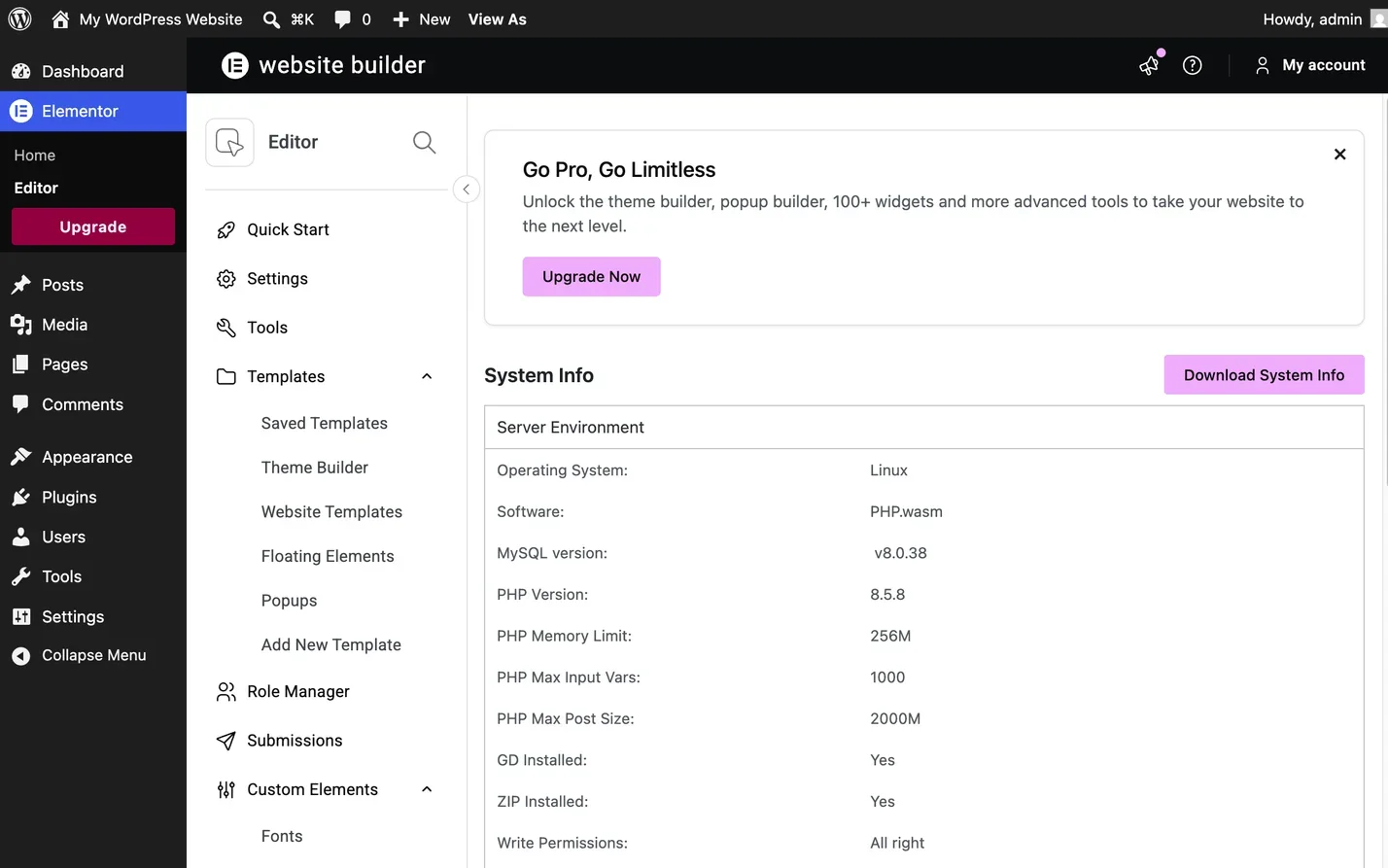
PHP memory limit. Elementor asks for 256 MB, recommends 512 MB, and suggests 768 MB for best performance. The editor uses far more memory than the front end, which is why a site can look healthy to visitors while the editor refuses to open. If you are under 256 MB, add this to wp-config.php above the “stop editing” line:
// Memory for the front end.
define( 'WP_MEMORY_LIMIT', '256M' );

// Memory for wp-admin and the Elementor editor, which need more.
define( 'WP_MAX_MEMORY_LIMIT', '512M' );
Neither can exceed the host’s own PHP limit, so if System Info still shows the old number afterwards, the ceiling is in the hosting panel (MultiPHP INI Editor in cPanel) or with the host.
PHP version. Elementor’s stated minimum is PHP 7.4 with PHP 8.x recommended. Treat 7.4 as a floor, not a target, since it has been out of security support for years. Test the move on a staging copy, because an old plugin never updated for PHP 8 throws a fatal error rather than a warning.
max_input_vars. The one nobody knows about, and the specific cause of the empty widget panel. It caps how many separate values PHP accepts in a single request. PHP’s default is 1000, and the editor sends far more when it builds the panel or saves a long page. Everything past the limit is discarded silently, which is why you get half a screen and no error. Raising it is Elementor’s own advice here, and 5000 is a common working value:
; Raise the cap on how many values PHP accepts per request.
max_input_vars = 5000
That goes in php.ini, not wp-config.php. On Apache, php_value max_input_vars 5000 in .htaccess sometimes works instead, but only if the host runs PHP as an Apache module. On NGINX, including Elementor’s own hosting, .htaccess does nothing and only the host can change it. Either way, go back to System Info and confirm the new number applied.
Step 4: Use Elementor’s Safe Mode

Safe Mode is built in and exists for exactly this. WP Admin > Elementor > Tools, General tab, set Safe Mode to Enable, save. Elementor often offers it on the stuck loading screen too.
What it does is narrower than people assume, and the boundary is what makes the result useful. It loads the editor on a bare WordPress with your plugins and theme switched off, for you only, so visitors see the normal site throughout. It also temporarily disables Elementor’s Experiments. It does not strip third-party scripts from the widget panel, and it cannot switch off must-use plugins in wp-content/mu-plugins.
If the editor opens in Safe Mode, a plugin or your theme is the cause, so go to Step 5. If it still will not open, the cause is outside plugins and themes: a PHP limit, a firewall rule, an SSL problem, a CDN, or something in mu-plugins. Check that folder over FTP for anything you did not install. Then turn Safe Mode off, or you will spend a week wondering where your plugin widgets went.
Step 5: Bisect the plugins and the theme
Safe Mode says a plugin is guilty. It does not say which. Halve the list rather than walking it, and thirty plugins becomes five tests.
Deactivate everything except Elementor and Elementor Pro and confirm the editor opens. Reactivate half of them at once and test. If it still opens, the culprit is in the other half. If it breaks, it is in the half you just switched on. Keep halving until one is left, hard refreshing between tests.
Then the theme. Switch to a default such as Twenty Twenty-Five and try again. If it opens, the problem is your theme, usually a script enqueued on every page including the editor, or a snippet pasted into functions.php. On a child theme, test the parent alone too, because the difference tells you whether the offending code is yours or the developer’s. If the guilty plugin is one you cannot do without, check for an update, then send its developer the console error from Step 2.
Step 6: Security plugins, firewalls and mod_security
If Safe Mode did not help and the PHP numbers are healthy, the next suspect is something refusing a request. The editor talks to your site constantly through admin-ajax.php and the REST API at /wp-json/, and both get blocked wholesale. Security plugins offer a “disable REST API” option people switch on without realising what depends on it, and firewalls running mod_security see the editor sending a large lump of JSON and read it as an attack. The tell is a 403 on one of those URLs in the console, because a 403 is the server saying no deliberately rather than failing.
You can handle the WordPress side yourself. Deactivate the security plugin briefly and try the editor. If that fixes it, go through its settings for REST API, XML-RPC and AJAX restrictions and add an exclusion rather than leaving the plugin off. On Cloudflare or another firewall, check the event log for your own requests being blocked.
mod_security is where you stop, because you cannot see the rules or switch them off. Contact your host with the time you tried and the words “my Elementor editor requests are being blocked, please check the mod_security log for my IP”. They can see which rule fired and whitelist it in a minute.
Step 7: SSL, mixed content and mismatched URLs
If your site addresses disagree, the editor tries to load itself from one address inside a page served from another and the browser blocks it. Check Settings > General and confirm WordPress Address (URL) and Site Address (URL) match exactly, including https:// on both and www on both or neither. In the console this shows as a mixed content warning, and it usually turns up after a migration or after adding SSL to an older site.
If old HTTP addresses are stored inside your Elementor page data, use Elementor > Tools > Replace URL with the old address and the new one. That writes straight to the database, so back up first. Afterwards press the button on Elementor > Tools > General to rebuild Elementor’s generated files. Elementor has renamed that section over the years, so it may read “Regenerate CSS & Data”, “Regenerate Files & Data” or “Clear Files & Data”. Same button, safe to press.
Step 8: Caching, CDNs and optimisation plugins
This wastes more time than anything else on the list, because the site looks fine and the cause is somewhere you were not looking. Optimisation plugins minify, combine and defer JavaScript, and the editor does not survive being combined with everything else on the page. Most exclude the admin by default, but “optimise everything” presets do not.
Clear every layer first: the plugin, the host’s cache, and the CDN. If a fix does not seem to take, the cache is not clearing and you are reading a stale copy. Then switch off JavaScript minification, combination and defer, retest, and turn them back on one at a time. On Cloudflare, disable Rocket Loader, which changes the order scripts execute in and is named in Elementor’s help centre as a cause of getting stuck on the grey loading page. When you find the culprit, exclude wp-admin rather than leaving the feature off.
Which of these you can fix yourself
Steps 2, 4, 5, 7 and 8 are all yours, and none can do lasting damage if you took the backup. Step 3 is half yours: the memory constants you can set, but max_input_vars and the PHP version usually need the host. Step 6 is where you stop and raise a ticket.
How to check it worked
Open the editor on the page that was failing, not a fresh blank one, because new pages are small and will open on sites that cannot manage a real layout. Open the longest page on the site as well, since a limit you raised only slightly passes on a short page and fails on a long one.
Then make a small change, press Update, and reload the front end in a private window, because a page that opens but will not save is a different fault. Finally put things back: Safe Mode off, test plugins reactivated, minification re-enabled with the right exclusions.
When it does not work
It works in Safe Mode but every plugin is off and it still fails
Look in wp-content/mu-plugins over FTP. Must-use plugins load first, cannot be deactivated from the admin, and Safe Mode does not touch them. Rename anything you do not recognise and retest.
The widget panel is still empty after raising max_input_vars
Confirm on the System Info screen that the new value actually applied. .htaccess changes are ignored on NGINX and on hosts running PHP as FastCGI, so the edit can look successful and do nothing.
The editor loads, then throws a 500 when saving
Not a loading problem. Read the server error log in your hosting panel and turn on WordPress debug logging to see the fatal error. There is a full walkthrough of debug mode and error logs if you have not done that before.
Common questions
Why does the Elementor editor get stuck on loading?
Because something interrupts its JavaScript before start-up finishes: a browser extension, a conflicting plugin or theme script, a PHP limit set too low, a firewall blocking its requests, or an optimisation plugin minifying its files.
Is Safe Mode safe to use on a live site?
Yes. It affects only your own editor session and visitors see the site as normal throughout. The real risk is forgetting to turn it off afterwards.
How much memory does Elementor need?
It asks for 256 MB, recommends 512 MB, and suggests 768 MB for best performance on larger sites. If you keep needing more, something is loading far more than it should, which is worth looking at properly rather than raising the ceiling again.
Should I update Elementor to fix it?
Not as a first move, since updating while the editor is broken adds a variable. Find the cause first, then update Elementor and Elementor Pro together, because a mismatch between the two causes its own problems.
Getting back into the editor
Nearly all of these come down to four things: your browser, a plugin conflict, a PHP number set too low, or a request being blocked. A private window and one look at the console costs five minutes, and the System Info screen answers the server questions without a single email to your host.
Once it opens, deal with the cause rather than the symptom. Set the minification exclusion properly instead of leaving it off. If it was a conflict, decide whether that plugin earns its place, because the sites where the editor jams repeatedly are usually the ones carrying three plugins doing the same job.
If you are still on the grey screen, or the site is live and you would rather not experiment on it, fixing broken WordPress sites is the sort of job I take on, and a stuck Elementor editor is usually a same-day one.