“Elementor is slow” is two complaints wearing the same coat, and almost every guide I read muddles them.
One is the editor. You open a page to change a heading, the panel takes half a minute to appear, dragging a container lags behind the mouse, and a save occasionally loses half your settings. No visitor sees any of that.
The other is the front end: the page a visitor loads carries CSS and JavaScript it never uses, nested six levels deep before it reaches any actual words.
The fixes barely overlap. Raising PHP memory makes the editor usable and does nothing for visitors. Optimized Markup makes the front end lighter and does nothing for editing speed. So the first job is working out which one you have.
Before you start
You need admin access to WordPress and your hosting control panel, because the editor fixes are server settings rather than WordPress ones. Some need SFTP to reach wp-config.php or a php.ini file.
Take a backup, and do the front end work on staging. Two of the changes below (Optimized Markup and Inline Font Icons) alter the HTML your CSS is written against, which is exactly why they are not switched on for you already.
Everything here is for Elementor 4.x, which declares PHP 7.4 as its floor and WordPress 6.8 as its minimum, though you should be well past both.
Step 1: Work out which problem you have
Open the page in the editor and count to ten. Then open it in a private browsing window as a visitor and count again.
If only the editor is slow, do steps 2 to 4 and ignore the rest. The editor loads Elementor’s whole widget library, your theme, every active plugin and the full JSON of the page you are editing, inside a single admin request. It is failing on resources, not on your design.
If only the front end is slow, go to step 5. If both are slow, the editor work comes first, because you need a workable editor to fix the page.
Elementor tuning sits on top of ordinary WordPress performance work rather than instead of it, so sort hosting, caching and images first. I have written that up in speeding up WordPress and fixing Core Web Vitals.
Step 2: Give the editor enough PHP memory, and a current PHP version
The most common cause of a slow editor, and a hosting setting rather than a WordPress one. Check Tools, Site Health, Info, Server. Anything under 256MB will make the editor struggle, and 512MB is not extravagant for a builder site with add-ons. Raise it in your hosting panel if you can, because that value is authoritative and WordPress cannot exceed it. WordPress applies its own ceiling on top, in wp-config.php above the “That’s all, stop editing” line:
// The limit for normal front end requests.
define( 'WP_MEMORY_LIMIT', '256M' );

// The limit for admin requests, which is where the Elementor editor runs.
// WordPress defaults this to 256M, so raising it is what helps the editor.
define( 'WP_MAX_MEMORY_LIMIT', '512M' );
Neither line can exceed the limit PHP itself is configured with, so if nothing changes in Site Health afterwards, the ceiling is your host’s.
PHP version matters separately. Old PHP runs the same code more slowly and is out of security support. Run 8.2 or newer, on staging first, because a neglected add-on will throw a fatal error on a newer version and take the editor down with it.
Step 3: Raise max_input_vars before it eats a save
This gets its own step because the symptom is not “slow”, it is “my changes did not save”.
Every control on every widget becomes a separate variable in the POST request when you hit Update, and a large page produces thousands. PHP’s max_input_vars defaults to 1000, and when a request goes past it PHP does not error, it silently discards the rest. You save, the page looks fine, and three sections at the bottom have reverted. Raise it in php.ini, or your host’s PHP settings panel:
; Elementor pages routinely blow past the PHP default of 1000.
max_input_vars = 4000

; The editor also needs room to save a large page in one request.
max_execution_time = 300
post_max_size = 64M
You cannot set max_input_vars from wp-config.php or .htaccess on most setups, because PHP reads it before those run. If your host will not change it, that is a real limitation, worth knowing before you build a four hundred element page.
Step 4: Cut the page down
Once the resources are right, the remaining editor slowness is the page itself. Three things drive it.
Element count. Every element is an object the editor renders, tracks and serialises, and it holds the whole document in memory. Several hundred on one page will show. Splitting a monster page into template parts is a genuine fix.
Nesting depth. Containers inside containers inside containers, three levels where one would do, usually because a layout got adjusted rather than rebuilt. It costs you in the editor and on the front end both.
Add-on plugins. Every add-on registers its widgets and controls into the same editor request. Five add-ons for three widgets is a bad trade. Delete the ones you do not use rather than deactivating them, because a deactivated plugin is still unpatched code on your server.
Step 5: Turn on Elementor’s front end performance settings
Now the visitor side, where the honest picture is more interesting than most articles admit, because the two most famous settings are no longer settings. Improved Asset Loading was merged into Elementor core in 3.21, so it is not a toggle, it is how Elementor works. The old Improved CSS Loading experiment was retired in 3.24, and its optimisations, splitting the monolithic stylesheet so a page loads only the widget styles it uses, now apply to every site by default. Any tutorial telling you to enable those two is years out of date.
What remains configurable lives in WP Admin, Elementor, Settings, on the Performance tab. Elementor has been reshuffling this admin area during the 4.x cycle, so if you cannot find that tab, look under Elementor, Editor, Settings.
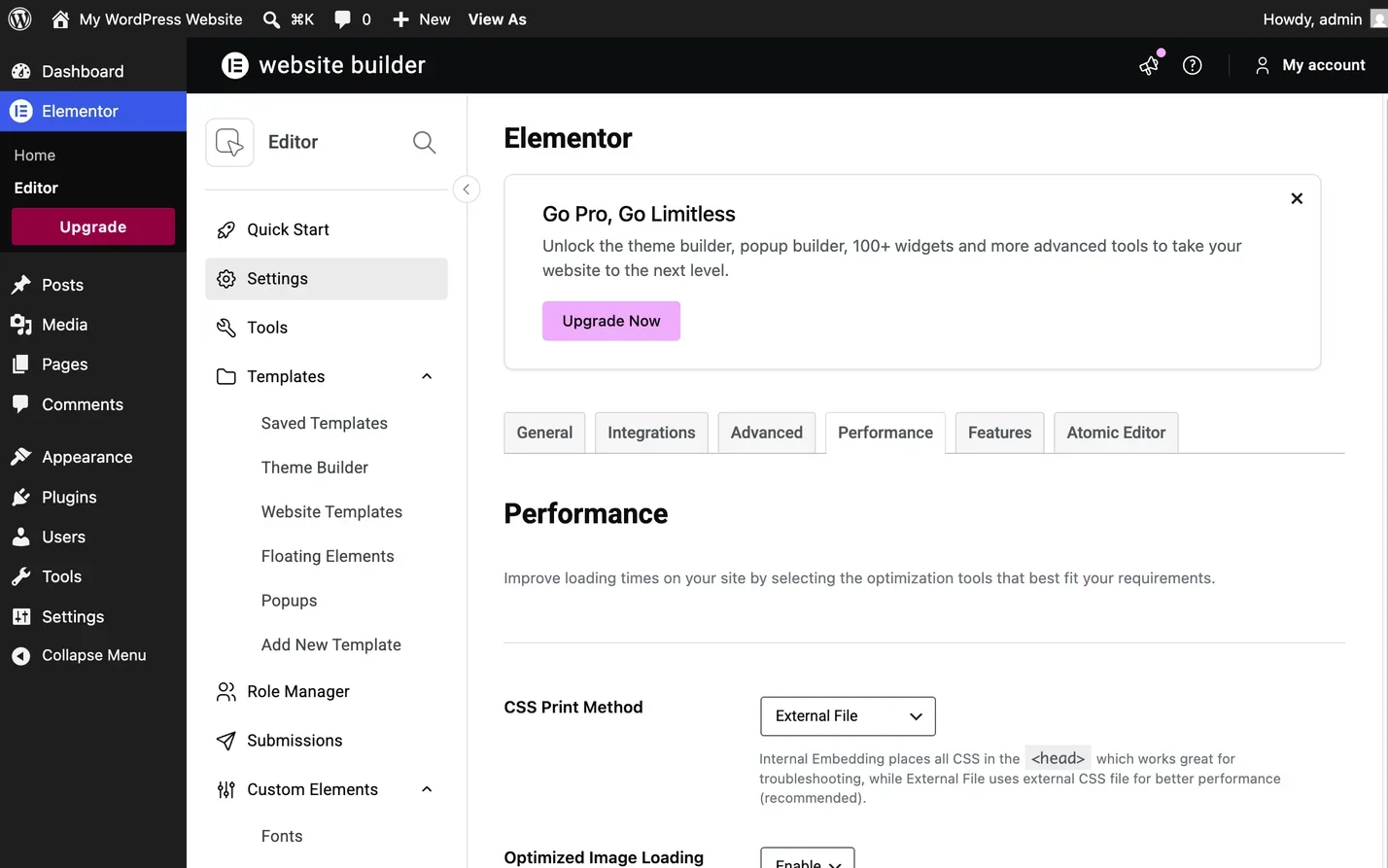
- CSS Print Method. External File writes the page’s CSS to a real file browsers cache between page views. Internal Embedding prints it inline, saving a request but repeating the CSS on every load. External File suits almost everyone.
- Optimized Image Loading. Puts
fetchpriority="high"on the image Elementor judges largest above the fold andloading="lazy"on those below it, the fix for the classic own goal of lazy loading your own hero. - Lazy Load Background Images. CSS backgrounds are invisible to the browser’s normal lazy loading, so Elementor defers every one except the first itself.
- Optimized Gutenberg Loading. Skips the block editor’s scripts and styles on pages with no blocks.
- Load Google Fonts Locally. Serves font files from your server, removing a third party connection and sidestepping the data protection argument UK and EU site owners keep having about Google Fonts.
- Element Cache. Serves elements pre-rendered rather than rebuilding them every request, with an expiration dropdown. Elementor excludes visitor specific widgets, but check custom or dynamic ones, because an element quietly showing yesterday’s content is a horrible bug to find later.
Font display sits on the Advanced tab rather than Performance, as Google Fonts Load. Set it to Swap so text renders immediately in a fallback and swaps when the web font lands, instead of the browser hiding text while it downloads.
Step 6: Turn on Optimized Markup, carefully
This one is on the Features tab (older versions call it Experiments), and it changes your HTML.
Optimized Markup removes redundant wrapper elements from Elementor’s output, reducing DOM size. Elementor treats it as stable and switches it on by default for sites created from 3.30 onwards. On an older site it is off, deliberately, and that reason is the whole point of the feature: removing wrapper divs changes the structure your CSS selectors match against. If you or a previous developer wrote CSS aimed at .elementor-widget-container, or an add-on styles its widgets by digging into Elementor’s wrappers, that CSS stops matching and the layout moves. This is why “enable everything on the performance tab” is bad advice.
Turn it on, then walk the site on mobile and desktop: homepage, a page with a form, a page with add-on widgets, an archive. If something breaks, turn it back off and the old markup returns.
Step 7: Trim the add-ons, the icons and the fonts
Everything so far has been settings. The structural causes matter more.
Each add-on ships its own bundle. An add-on typically enqueues its stylesheet and script wherever Elementor is active, whether or not the page uses one of its widgets, so ten add-ons means ten sets of assets on every page. Some let you disable the individual widgets you do not use, which genuinely reduces what they load. Where an add-on gives you no such control and you only wanted one widget from it, building that widget as a small custom plugin is the better answer, and it is why a fair amount of my plugin development work starts as an add-on removal.
Icon and font libraries are heavier than they look. A single icon can pull in the whole Font Awesome library plus Elementor’s own eicons, as font files and their CSS. The fix is Inline Font Icons on the Features tab, which renders icons as inline SVG instead of loading those libraries at all. On by default from 3.17 onwards, and older sites should test after enabling it, because an icon from an add-on with no SVG support can disappear. Web font weights multiply the same way.
Step 8: The DOM problem, and where the Atomic Editor comes in
The last cause is the one no setting fixes: excessive nesting produces a deep, wide DOM, and browsers pay for it on every interaction. It is why heavy builder sites fail INP even when everything is cached, since the browser still has to lay out and script all of it.
This is the problem Elementor 4 was built to address. The Atomic Editor replaces the old widget structure with a smaller set of elements you compose yourself: a Div Block and a Flexbox Container for structure, and separate Heading, Paragraph, Button and Image elements for content. Elementor’s stated design goal is a single wrapper div per element rather than the nested wrappers legacy widgets emit, so the same layout rebuilt atomically produces less HTML.
Two honest caveats. Leaner markup is a property of the elements, not of your build, so nest five atomic containers where one would do and you have the same page you had before. And nothing migrates, so the leaner output applies only to what you build atomically. It is not a switch you flick for a faster site, it is a reason to build the next page differently.
How to check it worked
For the editor, the test is the thing that annoyed you. Open your heaviest page and time it from click to usable panel. Then make a small change, save, and confirm it survives a hard refresh, which is the max_input_vars test.
For the front end, view source before and after. You want fewer <link> and <script> tags from add-ons, and icons appearing as inline <svg> rather than <i> tags with a font class. Then compare PageSpeed Insights lab numbers, and run document.querySelectorAll('*').length in the DevTools console for DOM size, which is the number Optimized Markup and an atomic rebuild aim at.
When it does not work
Saves still lose settings
max_input_vars did not take. It has to be set in PHP configuration, and many hosts ignore a php.ini you upload yourself unless it is in exactly the right place. Confirm the live value under Site Health, Info, Server. If your host will not raise it, split the page.
The layout broke after enabling Optimized Markup
Expected on older sites with custom CSS. Turn it off and the layout returns. If you want the benefit, the work is finding which selectors depended on the removed wrappers and rewriting them.
The front end is no lighter after all of this
Then the weight is your theme and your add-ons rather than Elementor, and you have hit the ceiling of tuning. A site built five add-ons deep with a slider on every page has a floor. Separating what can be tuned from what has to be rebuilt is most of what my speed optimisation work consists of.
Common questions
Is Elementor slower than Gutenberg or Bricks?
Its output is heavier than hand written blocks. But a badly built site is slow on any builder, and a careful Elementor build with these settings on passes Core Web Vitals perfectly well. What you loaded on top is usually the deciding factor.
Will a caching plugin fix a slow Elementor editor?
No, and this is the most common wasted afternoon. Page caching serves stored HTML to visitors, while the editor is a logged in admin request, excluded from caching by design. Editor speed is PHP memory, PHP version and page size, nothing else.
Does upgrading to Elementor 4 make my site faster?
Not on its own. Updating changes nothing about existing pages, because nothing migrates. Atomic elements produce leaner markup than legacy widgets, so a section you rebuild with them can be lighter, but that is work you do, not a benefit the update delivers.
Where this leaves you
The useful move is refusing to treat “Elementor is slow” as one problem. Editor slowness is a resource problem, fixed with PHP memory, a current PHP version, a sane max_input_vars and fewer add-ons. Front end slowness is a payload problem, fixed with the Performance tab, Optimized Markup where your CSS can take it, inline icons and honesty about which add-ons earn their place.
Elementor 4 changes the ceiling rather than the current state, so nothing gets faster by itself, but a rebuilt template can be meaningfully lighter than the same layout built the old way. Worth bearing in mind when you next plan a rebuild.
If you would rather hand the list to someone, that is what my WordPress speed optimisation service is for. Either way, record your before numbers, or you will never know which change mattered.