You fill in your own contact form, press send, and get the green “your submission was successful” message. Then you check the inbox and there is nothing. Not in spam either. You try again the next day, same result.
The frustrating part is that nothing looks broken. The form is happy, the page is happy, and the enquiry has quietly gone nowhere. Almost every time, this is not an Elementor bug. It is an email deliverability problem: your server sent a message the receiving provider decided not to accept, and providers bin suspicious mail silently rather than bouncing it back.
A few Elementor-specific things are worth ruling out first, and they take two minutes. After that the fix is the same for every WordPress site: stop sending mail through PHP and send it through a proper mail service instead.
Before you start
You need admin access to wp-admin, the ability to install a plugin, and access to the inbox you are sending enquiries to, including its spam folder. For the last step you also need access to your domain’s DNS records, usually at your registrar or in your host’s control panel.
Nothing here can break your site. The only real risk is pasting an SMTP password into a settings screen, so use a dedicated mailbox or an API key rather than the password to your personal email.
Step 1: Prove the form is actually submitting
Before you chase the email, confirm the enquiry reached your site at all. This check splits the problem cleanly in two.
On Elementor Pro, form submissions are saved to your database and listed under WP Admin > Elementor > Submissions. The Collect Submissions action is on by default, so unless somebody removed it, every submission since you built the form should be sitting there, with an Export All to CSV button worth knowing about.
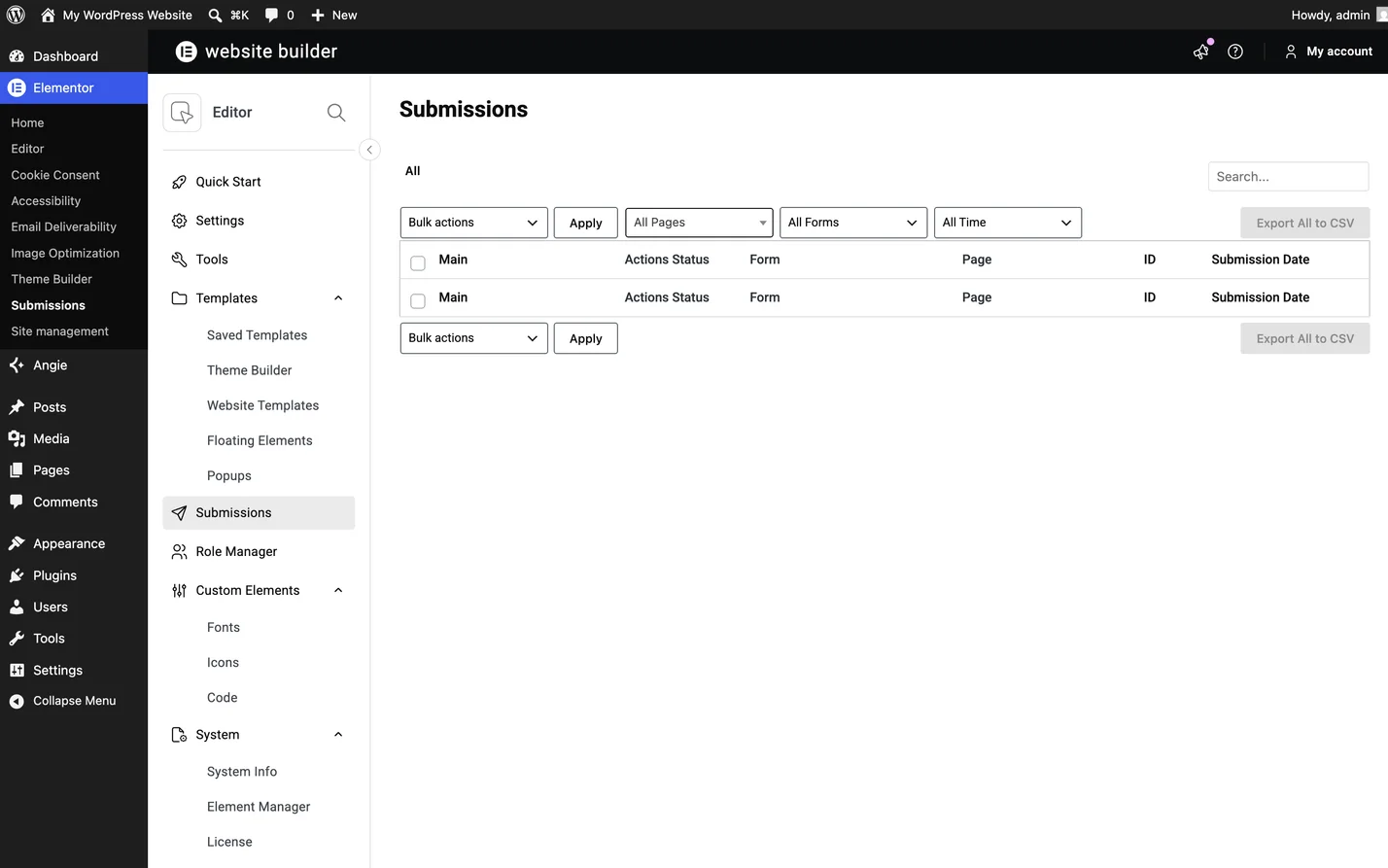
Submit your own form, then reload that screen. If your test appears, the form works and you have a mail problem, so carry on down the page. If nothing appears, the form itself is failing, and Steps 2 and 3 are where to look. If there is no Submissions menu item at all, you are on a version or licence without it, and the sending log you get in Step 6 proves delivery just as well.
Turn Submissions on regardless of whether your mail is working. Email gets lost, deleted and misfiled. A copy in the database does not.
Step 2: Check the Email action is actually there
Elementor forms do nothing after submission unless you tell them to. Sending an email is an action you add, not a default, so a form built quickly or copied from a template can easily have a lovely success message and no email action behind it.
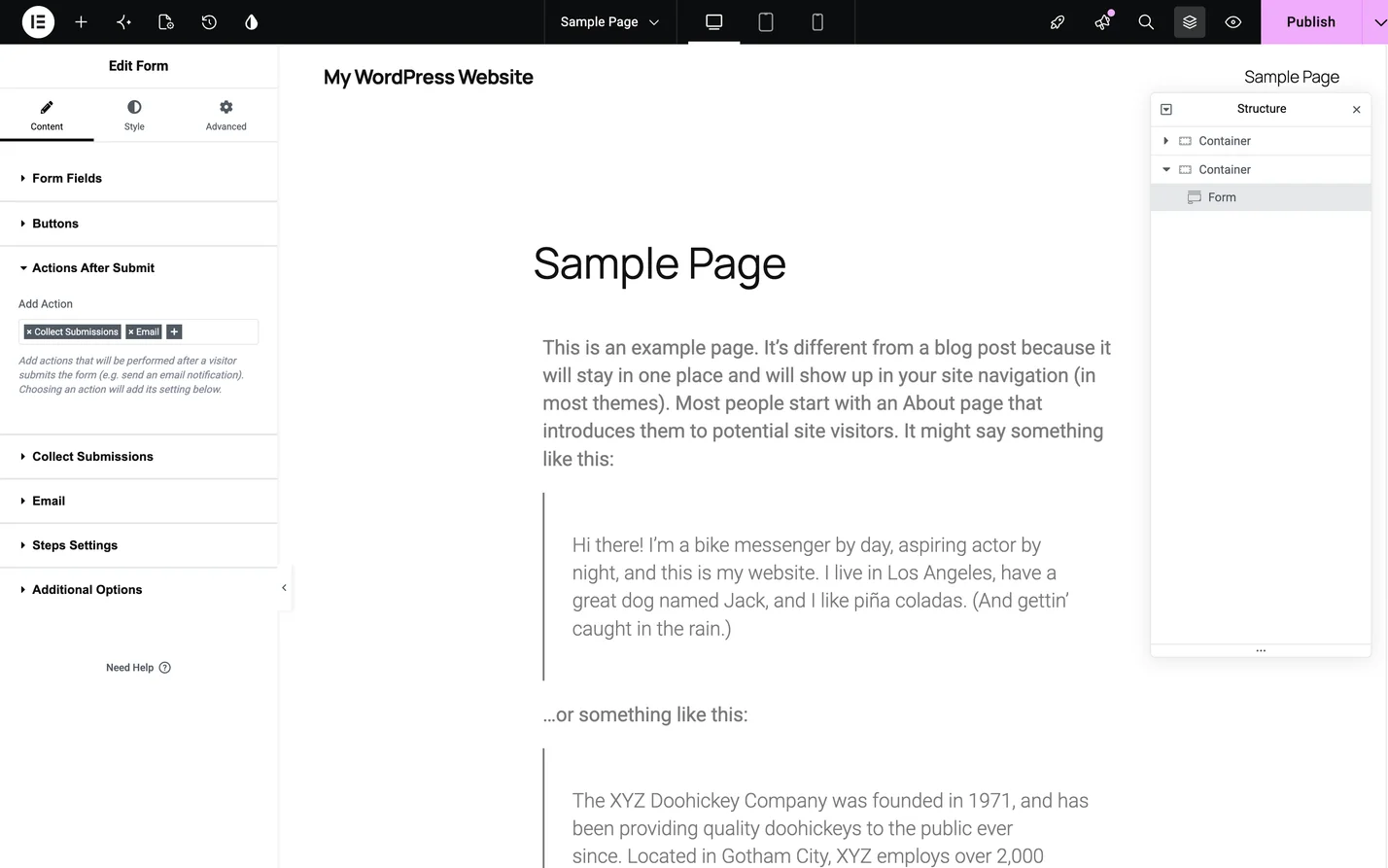
Edit the page, click the form, and on the Content tab open Actions After Submit. Email should be listed there. If it is not, click the plus and choose Email, and an Email section appears below where you set it up. Add Email 2 the same way if you also want a confirmation going to the person who filled the form in, since that is a separate message with its own settings.
Open the Email section and check To. It defaults to your site’s admin email address, which on plenty of sites is still whoever built it years ago, so put the address you actually read in there. Leave Message as [all-fields] unless you have a reason not to, because that shortcode pulls every answer into the email body and hand-built messages are where fields go missing.
Step 3: Check every field has an ID
This one is specific to Elementor and it catches people out constantly.
Every field needs its own ID, set on the Advanced tab when you select that field. IDs are usually filled in automatically, but duplicating a field, importing a template or editing in a hurry can leave one blank. An empty ID means the field’s answer never appears in an [all-fields] message, and it can stop the form working altogether.
Click each field in turn, open Advanced, and confirm the ID box has something in it. Any short lowercase word is fine as long as no two fields share one: name, email, phone, message.
Step 4: Check the From address and the spam folder
Two quick things before the real explanation.
First, look in the spam or junk folder of the destination inbox, searching for the subject line rather than scrolling. Mail sent by WordPress lands there routinely. If you find it, do not simply mark it as not spam and move on, because that fixes it for you and nobody else.
Second, check the From email setting in the form’s Email section. It must be an address on your own domain. If your site is example.co.uk, the from address should be something like website@example.co.uk, never a Gmail, Outlook or Yahoo address, and never the address the visitor typed into the form.
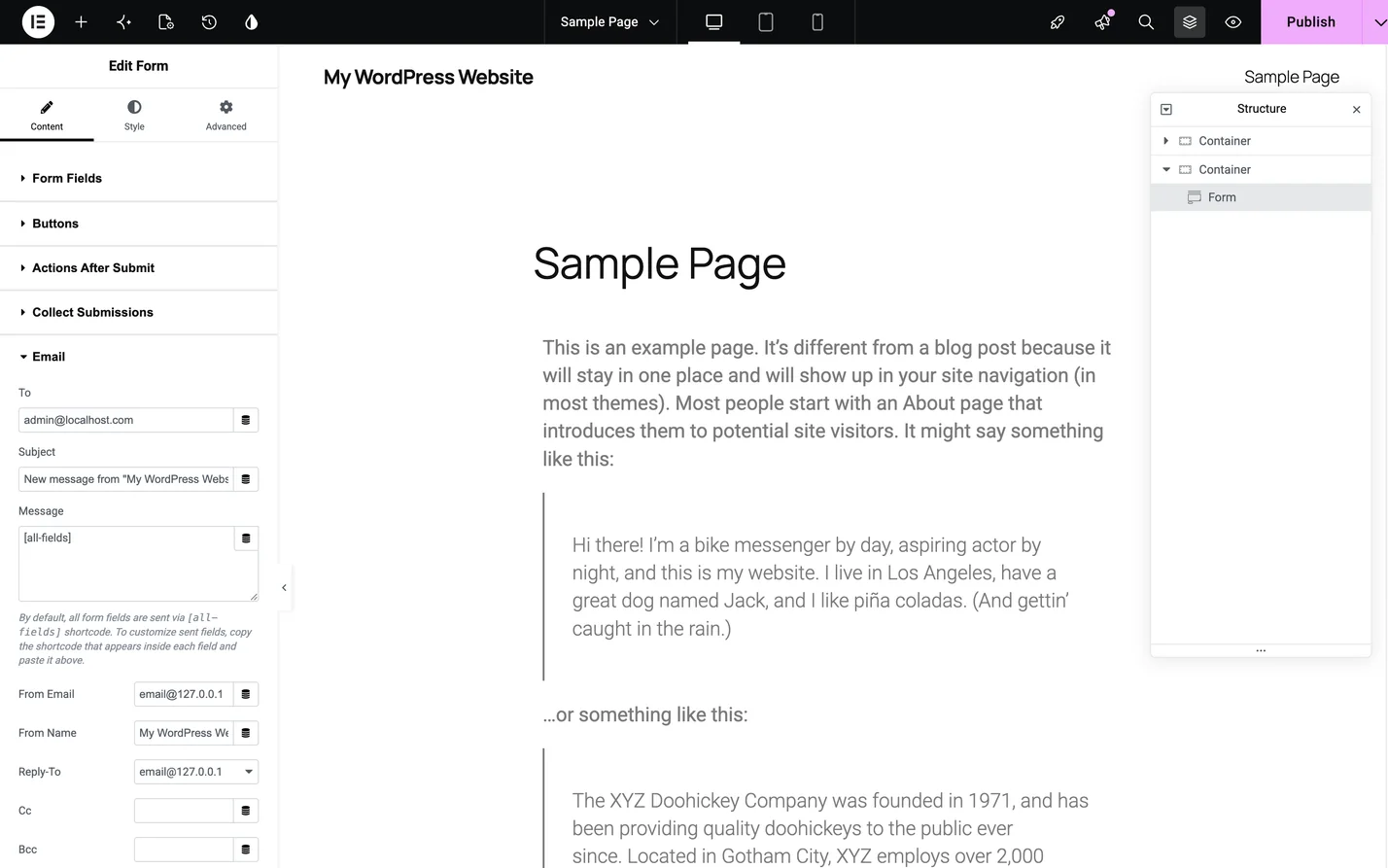
That last one is the mistake I see most. Putting the visitor’s address in the From field means your server claims to be sending on behalf of Gmail, which Gmail has never heard of and did not authorise, so the message gets binned. Set From to your own domain and put the visitor’s address in Reply-to instead, which is what makes hitting reply work.
Step 5: Why the email vanished
By default, WordPress sends mail using PHP’s built-in mail function. That hands the message to whatever mail program the server happens to have and sends it straight out, with no username, no password and no proof of who sent it. It is the email equivalent of dropping an unsigned letter into a postbox with someone else’s return address on it.
Receiving providers stopped trusting that long ago. Gmail, Outlook and every serious spam filter check whether the sending server is authorised to send for that domain, using DNS records called SPF and DKIM. A message sent by PHP from a shared hosting server, claiming to be from your domain, passes neither. Most providers discard it without telling anyone, because bouncing spam back is itself a way of confirming addresses to spammers.
That is why the form says it succeeded. As far as Elementor and WordPress are concerned the message was handed over without error, and everything that went wrong happened out of their sight. It also explains the symptoms people find baffling: it works to one address and not another, or it arrives for you but not for clients on Microsoft 365. Different providers apply different thresholds to the same unauthenticated message.
Step 6: Fix it properly with SMTP
The fix is to stop using PHP mail and send through a real mailbox or mail service with a proper login. That is all SMTP means here: your site signs in the way an email program does, and that service sends the message with its own reputation and authentication behind it.
You do this with a plugin that intercepts every email WordPress sends and reroutes it. WP Mail SMTP, FluentSMTP and Post SMTP all do the job, and Elementor publishes its own option, Site Mailer, which routes your mail through its service without SMTP credentials at all. Install one and it takes over sending for the whole site: form enquiries, WooCommerce receipts, password resets, the lot. Then choose where the mail goes out from.
Your host’s own mailbox
Create a mailbox like website@yourdomain.co.uk in your hosting control panel and give the plugin its SMTP host, port, username and password. It costs nothing and is usually enough for a small site. The limit is that shared hosting mail servers have modest sending caps and mixed reputations, since you share them with every other site on that server. Fine for a few enquiries a day, not for a shop sending order confirmations.
A transactional email service
This is what I would recommend for anything that matters. Services such as Brevo, Mailgun, Postmark, Amazon SES and Elementor’s Site Mailer exist to deliver automated mail, so delivery is the product rather than a side effect of hosting. You get proper authentication, a log of every message, and a clear answer when something does not arrive. Most have a free tier that covers a contact form comfortably. Setup is the same shape everywhere: create an account, verify your domain with a couple of DNS records they give you, generate an API key, paste it into the plugin.
Gmail or Google Workspace
Workable if your business already runs on Google Workspace and you want enquiries coming from a mailbox you own. Connect it with an app password or the plugin’s Google integration rather than your normal password. Two caveats: personal Gmail accounts have daily sending limits meant for a person typing emails rather than a website, and Google keeps tightening how third-party applications sign in, so this route needs more attention over time than an API key does.
My own contact form does not go through WordPress at all. It posts to a small PHP endpoint and sends through an authenticated service, for exactly the reasons above. That is a developer’s answer rather than a site owner’s, and an SMTP plugin gets you the same reliability in ten minutes.
Step 7: Test it properly
Every one of these plugins has a Send Test Email button. Use it first, because it tells you whether the connection works before the form is involved. If it fails, the error names the problem, and it is nearly always a wrong port, a wrong password or a host blocking outbound connections.
When the test passes, submit the real form on the real page in a private window, exactly as a visitor would. Check three things: the message arrived, it landed in the inbox rather than spam, and pressing reply addresses the visitor rather than yourself. Do that to a Gmail address, a Microsoft 365 address and your own business mailbox. Passing all three is the point at which you can stop worrying.
Step 8: Tidy up SPF, DKIM and DMARC
If you took the transactional service route and added the DNS records it asked for, this is already done.
In plain terms: SPF is a record listing which servers may send email for your domain. DKIM adds a cryptographic signature so a receiver can confirm the message really came from an authorised sender and was not altered. DMARC tells receivers what to do when a message fails those checks.
You do not need to become an expert. Your sending service publishes the exact records, you paste them into your DNS, and its dashboard confirms when the domain verifies. Two things to know: a domain can only have one SPF record, so if one exists you add to it rather than creating a second, and DNS changes take a while to propagate before the check goes green.
How to check it worked
The clearest signal is your sending service’s log. Every transactional provider shows each message, when it was accepted, and whether the recipient’s server took it, and most SMTP plugins keep a log too. An entry marked delivered is proof in a way that “I did not get it” never is.
Compare that against Elementor > Submissions. Every row there should have a matching delivered email, and a submission with no email beside it is the gap rather than a guess. Check again a week later, because deliverability problems reappear when a host changes something.
When it does not work
The test email works but form emails do not
That means SMTP is fine and the form is not. Go back to Step 2 and confirm the Email action is in Actions After Submit, then Step 3 and confirm every field has an ID.
It arrives at one address but not another
Almost always the recipient’s spam filtering, particularly Microsoft 365, which is stricter than most. Check your SPF and DKIM records, and ask the recipient to look in their quarantine, which on business mail is separate from the junk folder.
Nothing arrives and the test email fails too
Your host is probably blocking outbound SMTP, which many do to limit spam. Try the alternative port your service offers, and if that fails, ask the host to open it or use a service that sends over an API instead.
The form shows an error instead of the success message
That is a server-side failure rather than a mail one, and an empty field ID is the usual cause. If the IDs are fine, turn on WordPress debug logging to see the real error, which the guide to debug mode and error logs walks through.
Common questions
Why does my Elementor form say it sent but I get no email?
Because Elementor’s job ends when it hands the message to WordPress, and WordPress hands it to PHP mail, which sends it without any authentication. The receiving provider discards it quietly. The form is telling the truth about its own part of the job.
Do I need Elementor Pro for forms to send email?
The full Form widget with its actions after submit is part of Elementor Pro, and recent versions of the free plugin include a simpler Form Lite widget. The email problem, and its fix, are identical either way, and both depend on WordPress being able to send mail at all.
Is an SMTP plugin really necessary?
On most hosting, yes. Some managed hosts route mail through a proper service for you, in which case it already works. If your form emails are not arriving, yours does not.
Where are my Elementor form submissions stored?
In your site’s database, viewable at Elementor > Submissions on Elementor Pro, with uploaded files under wp-content/uploads/elementor/forms/.
Can I just use my Gmail address in the From field?
No, and this is the single most common cause of the problem. The From address must be on your own domain. Put the visitor’s address in Reply-to instead.
Getting enquiries to arrive again
Nearly every case comes down to the same thing. WordPress sends mail with no proof of who it is, modern providers do not accept that, and the form has no way of knowing. Fifteen minutes with an SMTP plugin and a sending service ends it for every email your site produces, not just the contact form.
While you are there, switch Submissions on and add a second recipient so enquiries are not sitting in one person’s inbox. Contact forms are the part of a site nobody tests and everybody depends on, and the failure is invisible from the outside, which is what makes it expensive.
If you would rather have someone set this up and confirm it end to end, get in touch. It is a small job and a good one to have done properly once.
If the forms are only the part you have noticed, a site that has quietly stopped sending mail has usually stopped doing other things too. That is the sort of thing WordPress fixes and repairs is for.