A client asks you to add their marketing assistant to the site, and to make sure they cannot install plugins or delete pages. Or it goes the other way: an editor says they cannot upload an image, nobody knows why, and somebody is about to make them an administrator to end the argument.
Both are the same problem. WordPress does not really work in roles. It works in capabilities, small named permissions like upload_files or publish_pages, and a role is nothing more than a labelled bundle of them. Once you see it that way, most role questions answer themselves.
By the end of this you will know what each default role allows, how WordPress checks permission in code, and how to add or change a role in a way that survives updates and does not hammer your database on every request.
Before you start
You need an administrator account, and somewhere to put PHP: a site-specific plugin or a child theme’s functions.php. I use a small plugin every time, because a theme update wipes functions.php and takes your roles with it, and because a plugin can be deactivated from the command line when it goes wrong.
Take a database backup first. Role definitions live in the database, not in your code, so a mistake is not undone by deleting the snippet. Remove the wrong capability from the administrator role and you are locked out of your own admin. Do this on staging if you have one.
Step 1: Learn what the six default roles actually allow
WordPress ships with six roles. Five exist on every site, the sixth only on multisite. Here they are side by side, so you can see where the line falls between “can write” and “can break things”. Pick a role to trace what it reaches.
Subscriber can read the site and edit their own profile. Nothing else. It is the role for people who need an account without touching content.
Contributor can write and edit their own posts, but cannot publish them and cannot upload files. That second restriction surprises people constantly: a contributor writing a post with images needs someone else to add them.
Author can write, upload files, publish their own posts and delete their own published posts. They cannot touch anyone else’s content, and cannot edit pages at all. Pages are a separate set of capabilities from posts, so an author is a blogger and nothing more.
Editor owns all the content. Posts and pages, other people’s included, published or private, plus categories, tags, comment moderation and unfiltered_html. What an editor cannot do is manage users, plugins, themes or settings. For most client sites this is the right answer, and the one people skip past on the way to administrator.
Administrator can do everything on a single site: install and edit plugins and themes, manage users, change settings, edit files. Treat it as root, because it effectively is.
Super Admin only exists on multisite, and I will come back to it.
You can read the real list, including anything your plugins have added, on your own site:
# Every capability the Editor role currently holds here.
wp cap list editor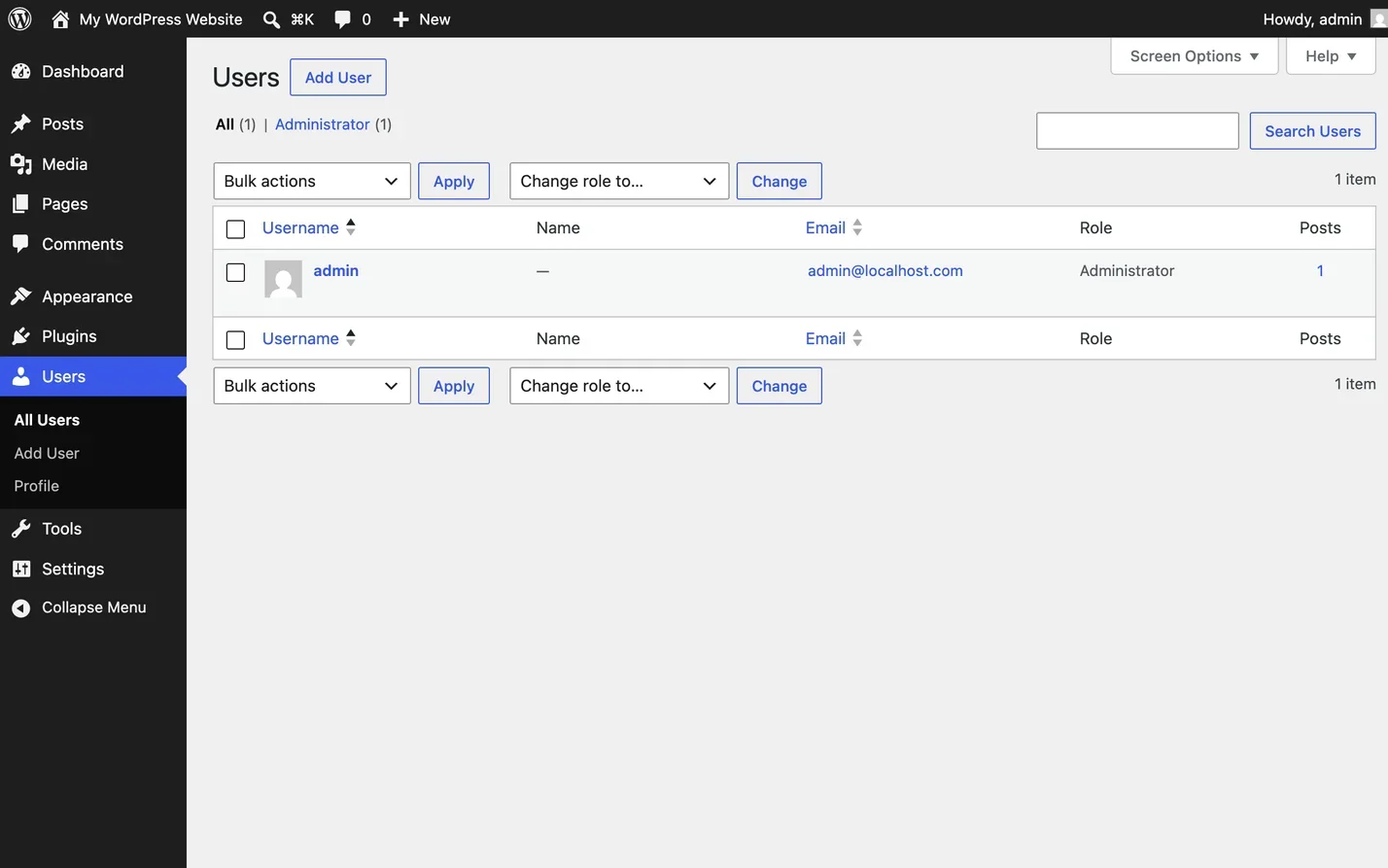
Step 2: Understand the difference between a role and a capability
This is the part most explanations skip, and it is what makes everything else make sense.
A capability is a single named permission: edit_posts, manage_options, moderate_comments. It is just a string. A role is a name plus a list of capabilities switched on for it. Assign a role and WordPress stores the role name against that user, then works out their capabilities by looking the role up.
Roles are stored once for the whole site, in the options table under {prefix}user_roles. Each user’s assignment is stored separately as user meta under {prefix}capabilities. That user meta can also hold capabilities granted directly to one person, bypassing their role, which is why someone occasionally does something their role should not allow.
Some capabilities are primitive, stored on the role as a plain yes or no. Others are meta capabilities, which only make sense against a specific thing. edit_post is one: whether you can edit a post depends on whose it is and whether it is published. WordPress translates meta into primitive at the moment of the check, through map_meta_cap(), so edit_post on someone else’s published article becomes a question about edit_others_posts and edit_published_posts. Never assign meta capabilities to a role. Assign the primitive ones and let WordPress map them.
Step 3: See how capabilities are checked in code
Every permission decision comes down to current_user_can(). It takes a capability and returns true or false.
// A primitive capability. No object needed.
if ( current_user_can( 'manage_options' ) ) {
    // Show the settings link.
}

// A meta capability. Pass the object ID or the answer is meaningless.
if ( current_user_can( 'edit_post', $post_id ) ) {
    // Show the edit link for this specific post.
}

// The same question about somebody who is not the current user.
if ( user_can( $user_id, 'publish_posts' ) ) {
    // ...
}
Two rules matter more than the syntax.
First, check capabilities, never roles. You will see if ( in_array( 'editor', $user->roles ) ) in the wild, and it breaks the moment somebody has two roles, a custom role, or a capability granted directly. Ask what the user is allowed to do, not what they are called.
Second, hiding a control is not the same as blocking the action behind it. Wrap a delete button in current_user_can() and leave the handler unchecked, and you have hidden a feature rather than restricted it. Every form handler, admin-ajax callback and REST route needs its own check, alongside a nonce:
add_action( 'admin_post_abcode_clear_cache', function () {
    // Nonce proves the request came from your form. It does not prove
    // the user is allowed to do this, so you need both.
    check_admin_referer( 'abcode_clear_cache' );

    if ( ! current_user_can( 'manage_options' ) ) {
        wp_die( 'You are not allowed to do that.', 403 );
    }

    // Do the work.
} );
The same applies to the admin menu. The capability you pass to add_menu_page() genuinely gates the screen, whereas remove_menu_page() only takes the link out of the sidebar and the page still loads.
Step 4: Add a custom role in a site-specific plugin
A common situation: a client should manage the content, the menus and the widgets, but must not install plugins, switch themes or create users. No default role fits, because editor is too tight and administrator is far too loose.
Build the role from the editor’s capabilities and add what is missing, in a small plugin of its own rather than the theme.
<?php
/**
 * Plugin Name: Site Roles
 * Description: Registers this site's custom roles and capability changes.
 */

defined( 'ABSPATH' ) || exit;

// Bump this every time you change the roles below, so existing installs
// pick the change up. See the note under the function.
const SITE_ROLES_VERSION = 1;

function site_roles_install(): void {
    // Start from the Editor's capabilities so you inherit sensible defaults
    // rather than listing forty capabilities by hand.
    $editor = get_role( 'editor' );
    $caps   = $editor ? $editor->capabilities : [];

    // add_role() does nothing at all if the role already exists, so remove
    // it first when you are deliberately redefining it.
    remove_role( 'site_manager' );
    add_role( 'site_manager', 'Site Manager', $caps );

    $role = get_role( 'site_manager' );

    // Menus, widgets and the site editor. Note this does NOT include
    // switch_themes, install_plugins or anything that runs new code.
    $role->add_cap( 'edit_theme_options' );

    // List management, without giving them the whole settings screen.
    $role->add_cap( 'list_users' );
}
register_activation_hook( __FILE__, 'site_roles_install' );
add_role() writes straight to the options table, and so does remove_role(). That is the whole reason for the structure above: the work happens on activation, once.
Activation alone is not quite enough, because the hook fires once and never again, so editing this file on a site where the plugin is already active changes nothing. That is what the version constant is for:
// Runs the installer only when the version in the database is behind the
// version in the code. One tiny option read per request, no writes.
add_action( 'init', function () {
    if ( (int) get_option( 'site_roles_version' ) === SITE_ROLES_VERSION ) {
        return;
    }

    site_roles_install();
    update_option( 'site_roles_version', SITE_ROLES_VERSION );
} );
Deactivating the plugin will not remove the role, because the role is in the database. Call remove_role( 'site_manager' ) deliberately, and move any users off it first, or they are left assigned to a role that no longer exists.
Custom roles are one of the more common reasons a site needs a bespoke plugin rather than a snippet, because they arrive alongside custom post types, restricted screens and a workflow that has to be written down to be repeatable.
Step 5: Add or remove capabilities on an existing role
Often you do not need a new role. You need the editor role to do one more thing, or the author role to do one fewer.
These go in the same installer as Step 4, not in a second function of the same
name. Two functions called site_roles_install() in one plugin is a fatal
error on every request, login screen included.
// Called from site_roles_install(), alongside the add_role() call above.
function site_roles_adjust_defaults(): void {
    // Let Editors manage the navigation menus.
    if ( $role = get_role( 'editor' ) ) {
        $role->add_cap( 'edit_theme_options' );
    }

    // Stop Authors deleting things they have already published.
    if ( $role = get_role( 'author' ) ) {
        $role->remove_cap( 'delete_published_posts' );
    }
}
Add the call inside the installer, then bump SITE_ROLES_VERSION so the
version guard runs it on sites where the plugin is already active.
get_role() returns null if the role does not exist, so guard it. Where another plugin has renamed or removed a role, an unguarded call is a fatal error on every request, including the login screen.
One gotcha: remove_cap() on a role does not touch capabilities granted directly to an individual user. Someone given delete_published_posts on their own user record keeps it, and wp user remove-cap <user> <cap> clears that.
Why rebuilding roles on every page load is a mistake
The most common bad pattern in this area looks harmless:
// Do not do this.
add_action( 'init', function () {
    remove_role( 'site_manager' );
    add_role( 'site_manager', 'Site Manager', [ 'read' => true ] );
} );
That is two database writes on every request, including every admin-ajax call, REST request and cron run. The roles option is autoloaded, so each write also invalidates it in the object cache.
It is worse than slow. It silently discards anything else that has changed that role since the last load, including work done by a membership plugin or by you in a hurry through a role editor screen. Roles are configuration, not runtime state. Write them once and leave them alone.
The capabilities that are administrator in disguise
Some capabilities look modest and are not. Hand any of these out and you have made an administrator with extra steps:
edit_files, along withedit_pluginsandedit_themes. These allow writing PHP that your server then executes, which is total control by another name. Turn the built-in editor off withdefine( 'DISALLOW_FILE_EDIT', true );inwp-config.php.install_plugins, plusupload_pluginsandupdate_plugins. Uploading a zip is uploading PHP, so it is the previous point with a friendlier screen.edit_users, pluspromote_usersandcreate_users. Anyone who can edit users can promote themselves, or quietly create an administrator to come back to later.unfiltered_html. Allows posting raw HTML, including<script>. That is stored cross-site scripting aimed at whoever opens the page next, and the most valuable target is you. Editors and administrators hold it by default on single sites, which is fine among people you trust and bad for a public-facing role.manage_options. The whole settings area, including the site URL fields, one wrong paste away from an unreachable site.
If a role seems to need one of these, check whether it needs the underlying task or the capability itself. A small custom screen with its own capability is usually the better answer.
Multisite and the super admin
On multisite, roles are per site. The same user can be an editor on one site in the network, a subscriber on another, and have no account at all on a third. Capabilities are looked up against the site currently being served, which is why switch_to_blog() changes what current_user_can() returns.
Super Admin is not a role in the usual sense. It is not in the roles option and does not appear in the role dropdown. Network administrators are a separate network-level list, checked with is_super_admin(), and a super admin passes almost every capability check on every site in the network.
Multisite also moves the dangerous capabilities up a level. Plugin and theme installation is a network administrator job by default, and unfiltered_html is restricted to super admins, which catches people out when a site moves into a network and a script-heavy page stops rendering.
How to check it worked
Load the users screen and confirm the new role appears in the dropdown. Then check the capabilities rather than the label:
# What does the role actually hold now?
wp cap list site_manager

# Ask the real question about a real person.
wp eval 'var_dump( user_can( 12, "install_plugins" ) );'

# Who is on this role at the moment?
wp user list --role=site_manager --fields=ID,user_login,roles
user_can() is the honest test, because it accounts for the role, any capabilities granted directly to that user, and any plugin filtering user_has_cap.
A faster way to look at it
Capability lists tell you what is permitted. They do not tell you what the screen looks like, and a client’s complaint is always about the screen.
That is what I built ABCode View As Role Switcher for. It lets an administrator view the front end as a chosen role sees it, including as a logged-out guest, without logging out or opening a private window. It performs a genuine capability switch rather than a cosmetic preview, so conditional logic in your theme and plugins behaves the way it would for that user. Sessions expire on their own after 15 minutes, 1 hour or 8 hours, nothing is written to the database, and no stored roles are altered. It is free on wordpress.org.
Be clear on what it is not. It switches the front-end view by role, so anything specific to one person, their orders, their memberships, their individually granted capabilities, still needs that person’s account, and admin screen checks need a real login. It is for the quick loop while you are still changing things, not for the final sign-off.
When it does not work
The new role does not appear in the dropdown
The installer never ran. Activation only fires on activation, so adding the code after activating the plugin does nothing. Deactivate and reactivate, or bump the version constant.
You removed a capability and locked yourself out
wp role reset administrator puts a core role back to its shipped state, and wp role reset --all does the lot. Without WP-CLI, drop a file into wp-content/mu-plugins/ calling get_role( 'administrator' )->add_cap( 'manage_options' );, load one page, then delete the file. Must-use plugins load before everything else and cannot be deactivated by a broken admin.
A user still has a capability you removed from their role
It was granted on their user record rather than through the role. Check with wp user list-caps <user> and clear it with wp user remove-cap <user> <cap>.
The role keeps reverting to something you did not set
Something is redefining it on init, usually a membership or ecommerce plugin managing its own roles. Search the plugins directory for add_role( and remove_role( to find it.
The menu item is gone but the page still loads
remove_menu_page() hides, it does not block. The page’s own capability check is what protects it. If that page is yours, add current_user_can() at the top of the callback and in whatever it submits to.
Common questions
Can a user have more than one role?
Technically yes. WP_User::add_role() assigns a second and the capabilities merge as a union, so the most permissive wins. The core interface only exposes one at a time. I avoid it where I can, because working out why someone can do something turns into adding two lists together.
Should I use a role editor plugin instead of code?
They are useful for seeing what exists, and fine for a one-off change on a site you administer by hand. The catch is that the change lives only in that database, so it does not travel to staging and it is not in version control.
What role should I give a client?
Editor, in most cases. Full control of content, no ability to break the site. Move up only when something specific is missing, and add that capability rather than promoting them.
Changing a role is only half the job
Roles are bundles, capabilities are the real units, and every permission decision in WordPress is a current_user_can() call somewhere. Once that clicks, “how do I stop them installing plugins” stops being a question about roles and becomes a question about which capability to withhold.
Write role changes in a small plugin, run them once rather than on every request, guard get_role(), and keep the administrator-equivalent capabilities away from anyone who does not already hold the keys.
What is left is the part no capability list will tell you. Once the role has changed, you need to know what that user actually sees: which menu items are there, which pages load, and whether the things that vanished are genuinely blocked or only hidden. That is a testing problem rather than a roles problem, and it deserves its own hour. If you would rather hand the whole thing over, custom roles and the screens that go with them, get in touch.