You have restricted a page to members, or set up a client’s editor account, and now you want to know it behaves the way you think. Looking at it yourself proves nothing, because you are an administrator and an administrator sees everything. That is the one view on the site that cannot answer the question.
I wrote ABCode View As Role Switcher so I could stop keeping a second browser profile open all day. It switches the front end to a role rather than to a person, so there is no dummy account to create, no password to store and nothing extra in your users list. Pick a role from the toolbar, the page reloads with that role’s capabilities, and you see what a subscriber, a customer or a contributor actually gets.
This walks through installing it, choosing which views appear in the toolbar, switching and switching back, and what the capability switch really covers. It also covers what the plugin deliberately does not do, because that decides whether it is the right tool for your check.
Before you start
You need an administrator account. The plugin only offers the switcher to users who can manage options, and every switch is checked against that capability and a nonce. The listing gives the requirements as WordPress 5.0 or later and PHP 7.4 or later.
This is about as low risk as a plugin install gets. Nothing is written to the database when you switch, no stored roles are touched, and the session lives in one signed cookie in your own browser. The usual courtesy applies on a client’s live site: tell them before you install anything.
If you would rather not install anything, the manual routes are in testing a WordPress site as a different user. Real test accounts answer the same question. They are just slower, and slow is what stops people checking.
Step 1: Install and activate
Search for ABCode View As Role Switcher under Plugins, then Add New. To install by hand, download the zip from the wordpress.org listing, unzip it into /wp-content/plugins/ and activate it from the Plugins screen.
There is no setup wizard. On activation a View As item appears in the toolbar and a settings screen at Tools, then View As Role. You can start switching immediately and tidy the menu afterwards.
Step 2: Choose which views to offer
Go to Tools, then View As Role. The top of the screen tells you three things: how many views are in the toolbar, the session length that is set, and who you are viewing as, which reads Yourself when you are not in a session.
Underneath, Offer these views lists a checkbox per role on the site, plus Logged-out visitor. Tick the ones you test with and untick the rest, because the on-screen note is exact about it: only ticked views appear in the toolbar. Then set Session Length and press Save settings.
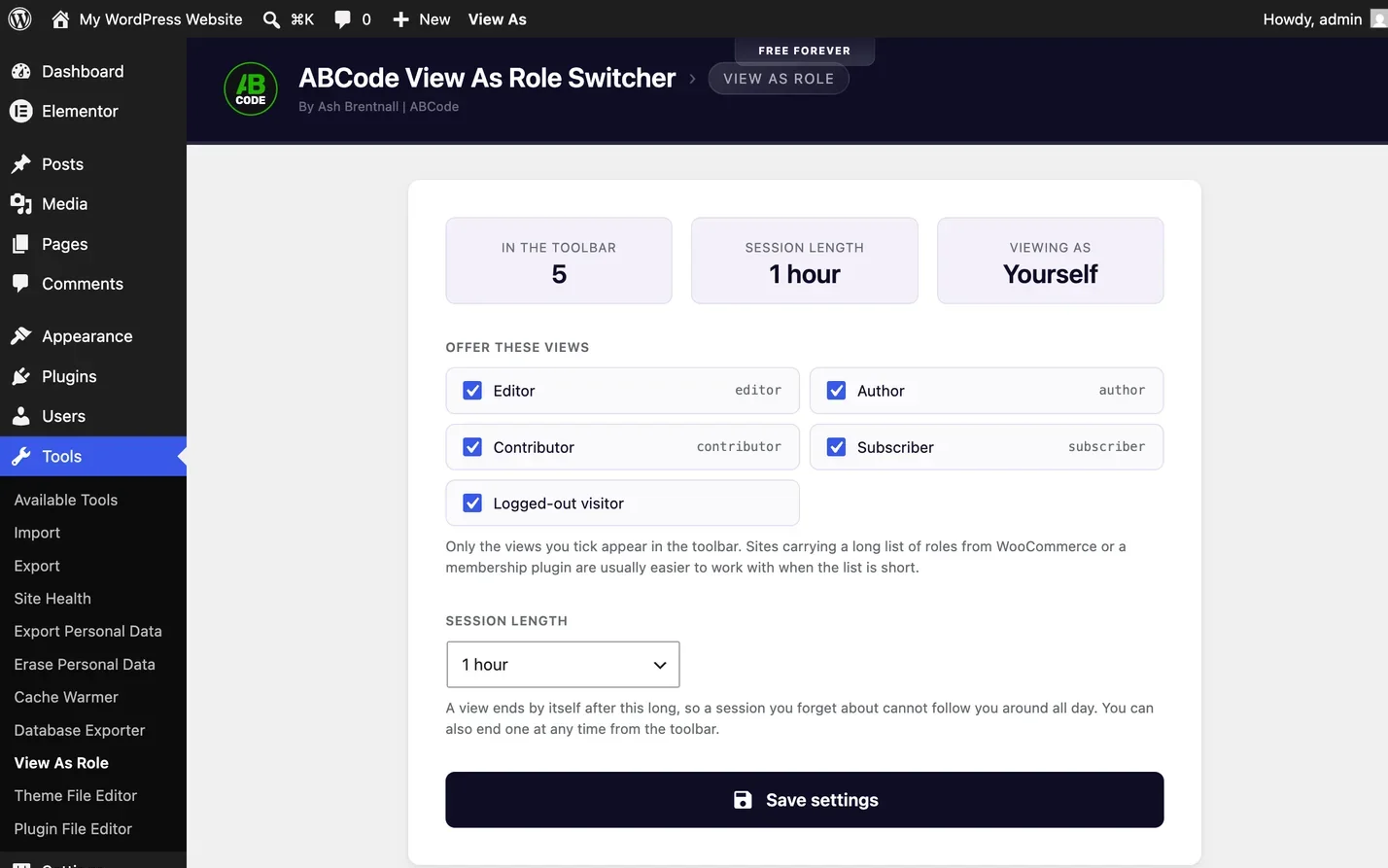
The install in that screenshot has five views in the toolbar and a session length of one hour. The choices are 15 minutes, 1 hour and 8 hours, and the help text says what that means: a session ends by itself after the length you choose.
Every role registered on the site shows up here, not just the five WordPress ships with. If WooCommerce or a membership plugin has added Customer or Shop Manager, it appears as soon as it is registered. That is the practical upside of switching to a role rather than to a person.
Step 3: Switch from the toolbar
Load any front-end page and hover View As in the admin bar. The menu lists a view per role you ticked, then View as a logged-out visitor, then Role switcher settings as a shortcut back to the screen above.

Pick one and the page reloads. The toolbar item turns green and reads Viewing as, followed by the role, so there is never any doubt which session you are in. Browse from there as normal. Every front-end page stays in that role until the session ends or expires.
The switcher is in the wp-admin toolbar too, but choosing a role there opens the front end in a new tab rather than switching the admin screens. Switching your own admin screens to Subscriber would lock you out of the screen holding the way back.
What a genuine capability switch actually means
This is the reason I rewrote the plugin rather than shipping a preview mode. During a session, current_user_can(), user_can() and role checks answer for the role you switched to, not for you. It is a filter applied while the page is built, so anything asking WordPress a permission question gets the switched answer.
// A theme or plugin asking the ordinary question gets the switched answer
// during a session, so this block behaves as it will for a real editor.
if ( current_user_can( 'edit_posts' ) ) {
    // ...editor-only markup
}
The effect is that hidden and blocked stop looking the same. A page taken out of a menu is hidden. A page whose content sits behind a capability check is blocked. Both look identical from an administrator account, and only one survives someone pasting the URL in. Switch to Subscriber, paste in the URL of the members page, and you get a straight answer: either the content appears, in which case it was never protected, or you get a redirect, a 403 or a 404. If capabilities are a fuzzy area, WordPress user roles and capabilities covers what is in each bundle.
The boundary matters. The switch applies to front-end page loads. wp-admin, the REST API and admin AJAX always run as you, so an endpoint under /wp-json/ or an admin screen needs a real account.
Checking the logged-out visitor view
View as a logged-out visitor treats the request as if nobody is signed in, which is how first-time visitors and search engines arrive. It saves opening a private window, and unlike a private window the toolbar stays visible so you have the way back.
One caveat, from the plugin’s own FAQ: full-page caching and this view do not mix reliably. A server or CDN cache can hand you a stored copy before WordPress has worked out who you are. If the guest view looks suspiciously unchanged, clear the cache and reload before you believe it.
Ending a session
Click the green Viewing as item and choose Switch back to your own account. That is the normal way out.
There are two more, which is the point. An End the session now button sits on the Tools, then View As Role screen, and every session expires on its own after the length you set. Logging out ends it too, so you cannot get stranded.
What it deliberately does not do
It switches by role, not by person. Anything tied to one individual, their orders, their membership status, a capability granted directly on their user record, still needs that account.
It is front end only, and it needs an administrator account, so it is no help to a client on the phone asking why a button has gone. It writes nothing to the database, so there is nothing to clean up afterwards and nothing recorded either.
For the last check before a members area goes live, use a real test account. A real login goes through the same session handling your visitors get, and that is what you want verified when the thing being protected is genuinely private. The switcher is for the forty checks before that one, not instead of it. The full capability list sits on the plugin’s page, ABCode View As Role Switcher.
How to check it worked
Switch to Subscriber and load a page only editors should see. The toolbar should be green and reading Viewing as: Subscriber, and the page should refuse you. Then paste in the URL of anything you have merely hidden from a menu. If it loads, you have found a real bug and the plugin has done its job.
Switch back, reload, and confirm you can see it again. If both behave, the switch works end to end.
When it does not work
The page looks the same after switching
Almost always a full-page cache serving a stored copy. Check that your caching plugin, and any server or CDN cache in front of the site, skip logged-in users, then clear it and reload. A unique query string on the URL forces a fresh build while you test.
The role you want is not in the menu
It is not ticked. Go to Tools, then View As Role, tick it under Offer these views and save. The count at the top of that screen confirms how many views are now in the toolbar.
A subscriber can still see the restricted content
The plugin is working and the restriction is not. Content hidden by a template check is still served at its own URL, and still turns up in the site’s search, the feed and the REST API. Protection has to live where the content is served, not where it is displayed.
Nothing changes on admin screens
By design. Admin screens, the REST API and admin AJAX run under your own account so you cannot lock yourself out mid-session.
Common questions
Do I still need a test account for every role?
Not for role-based checks, which is most of them. You need a real account when the behaviour depends on the individual rather than the role, and for the final sign-off before something private goes live.
Does it change anyone’s role?
No. Nothing is written to the database and no stored roles are modified. The switch is a filter applied while the page is built, held in a signed cookie tied to your login session.
Can other visitors be affected?
No. It applies to your browser, for the length of your session, and to nobody else.
Does it work with WooCommerce and membership plugins?
For anything gated on a role or a capability, yes, including roles those plugins add themselves. Content restricted to a specific person, or to what they have bought, stays tied to your own account.
Can a client use it?
Only if they are an administrator. Every switch verifies the manage options capability and a nonce.
Where this fits
Install it, tick the roles you actually test with, and a check that used to mean a second browser profile becomes two clicks and a reload. Most of the value is in doing the check at all, twenty times during a build rather than once at the end when being wrong is expensive.
Keep the real test account for the last pass and use the switcher for everything before it. If you would rather someone else went through a site’s restrictions properly before it launches, get in touch and I will take a look.
Like the rest of the tools here, this one exists because the alternative was doing the same check by hand every time. Building that sort of thing to fit how a team actually works is what our WordPress plugin development covers.